How to plan a clear Black Friday 2026 content sequence
A Black Friday plan should make the offer easier to understand before the deadline arrives. This guide uses a fictional stationery shop to plan a sequence and draft one offer carousel. The scenario is illustrative; quantities, prices, and customer results must come from the real business before publication.
Black Friday 2026 is Friday, November 27. Cyber Monday is Monday, November 30. If an offer continues through Monday, make that clear from the beginning instead of describing Friday as the final chance.
1. Write the offer facts first
Record what is included, the price, eligibility, delivery conditions, and the start and end time with a time zone. Check stock information against the actual system. Leave unknown details in working notes; do not let a drafting model invent them.
For the stationery example, imagine a notebook-and-pen bundle. The brief should name the actual included products and available options. “Everything you need” is less useful than showing those items and explaining what is excluded.
2. Work backwards from the real launch
For a November 27 launch, three weeks earlier is November 6 and one week earlier is November 20. These are planning checkpoints, not instructions to post every day.
| Period | Useful content task |
|---|---|
| From November 6 | Explain who the bundle is for and show the products |
| From November 20 | Publish confirmed terms and answer buying questions |
| November 27 | Announce availability with the actual purchase route |
| Until the stated deadline | Answer new questions and give a truthful reminder if useful |
| November 30, if included | Explain the remaining offer without contradicting earlier terms |
Choose a frequency the team can support. Do not create scarcity or customer questions just to fill a content slot.
3. Build one complete offer carousel
For the illustrative bundle, use an opening that identifies the products and intended use. Follow it with the contents, relevant size or paper details, confirmed offer terms, and the purchase route. If there is an actual customer review you have permission to use, identify it accurately. Otherwise show the product rather than inventing a testimonial.
An editable copy block can be useful:
[Bundle name] includes [exact items and options].
Price: [confirmed amount and applicable terms].
Available from [date, time, time zone] until [date, time, time zone].
Delivery and eligibility: [confirmed conditions].
Details and purchase: [working destination].
Replace every placeholder before posting. The template is a planning aid, not finished evidence.
4. Draft, design, and inspect
ViralityWand can help prepare carousel drafts and designed slides from the approved brief. Compare the generated text with the offer facts, then inspect the export for readable copy and consistent dimensions. Check the destination preview rather than assuming the design is correct because it fits in the editor.
Use the linked caption preview tool to check the supporting caption. If a term is too important to miss, place it visibly instead of hiding it behind a vague “conditions apply.”
5. Update the plan when reality changes
Before sending a reminder, check whether the item remains available and whether the deadline is still accurate. Correct an outdated post or provide a clear update when necessary. A limited-time offer should mean what it says.
After the campaign, keep notes on actual questions and outcomes. They can improve the next plan without turning a single campaign into a universal claim about what converts.
How to do it in ViralityWand
- Open this brief in ViralityWand. The link prefills the idea field; it does not start generation. Sign in if asked, then add your real source notes and replace any working placeholders.
- In Template, choose a layout that fits the explanation; inspect its structure instead of assuming it supports an exact slide count. Open Writing and choose English. Set Slides where the chosen template allows it. Lesson Series is a real text-led option to inspect, not a required choice. Browse matching templates.
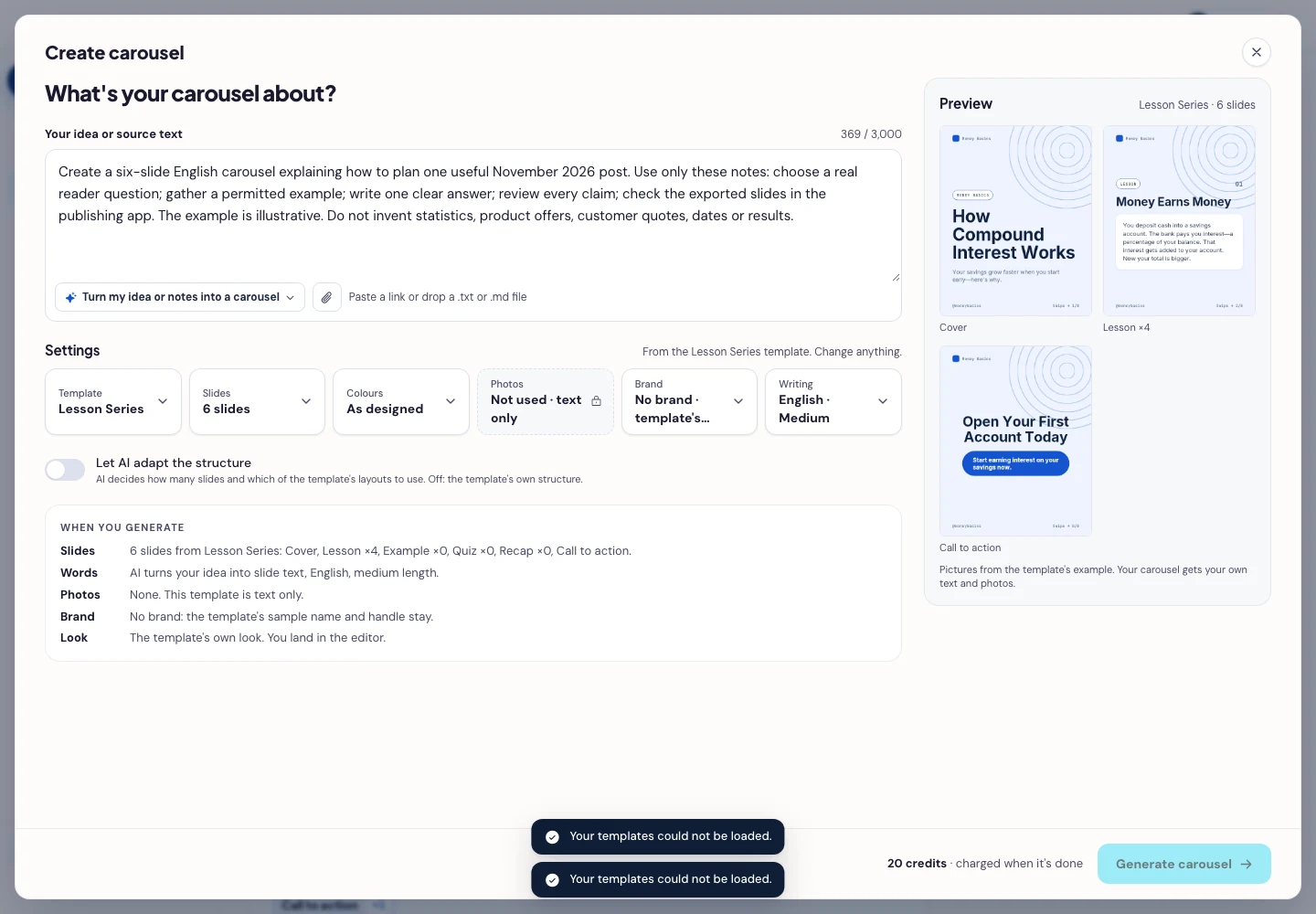
- Press Generate carousel only after checking the brief and the credit amount shown in the app. In the editor, review every slide, edit unsupported wording, and use Brand or the text controls to replace sample names, handles, and logos. Compare offer details with the real order page immediately before publishing.
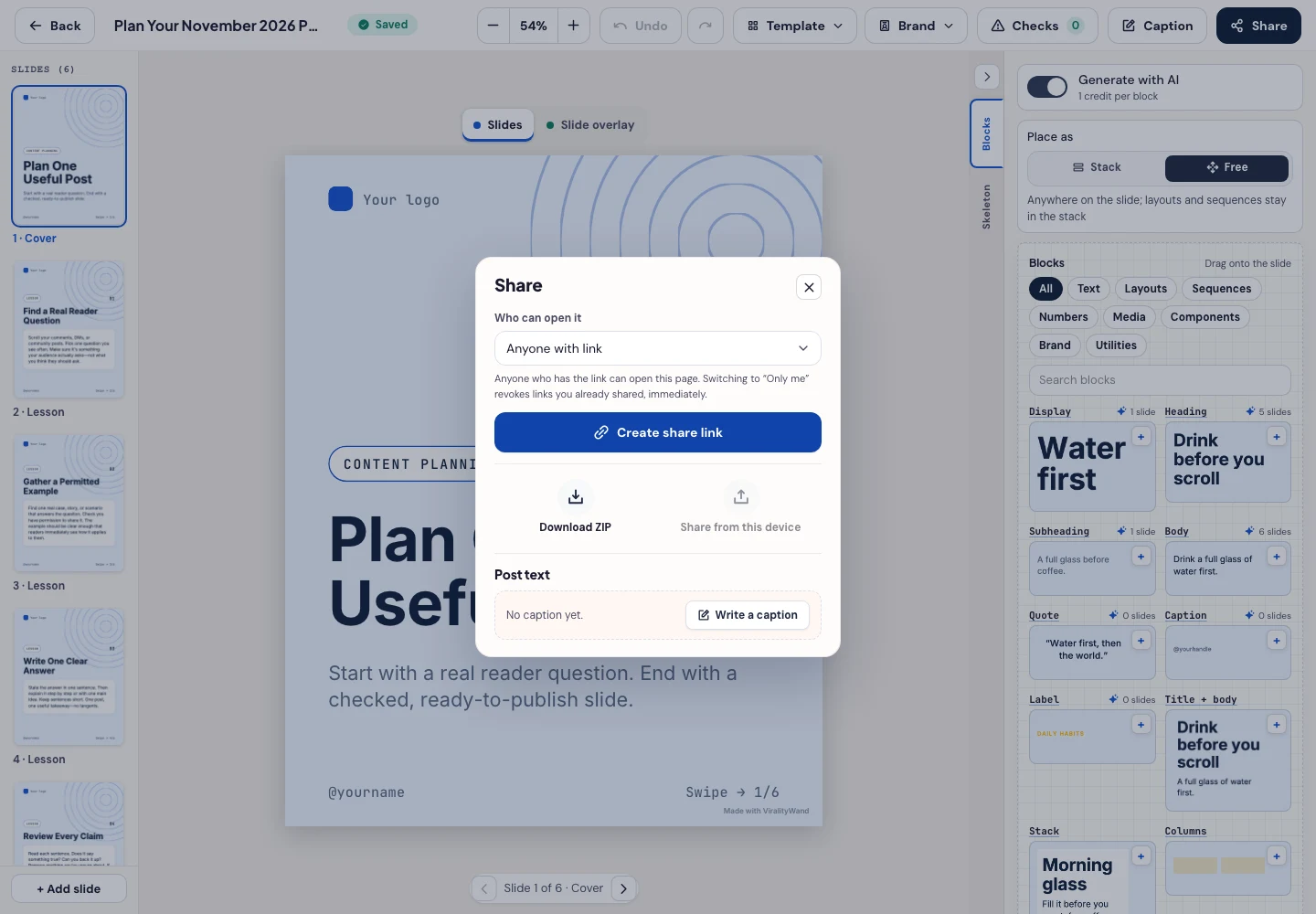
- Open Share → Download ZIP, unpack the slide images, and check their order, text and destination upload preview. This is a download workflow; publishing remains a separate step.
Further reading: Instagram Caption Preview.
It feels good to have your first carousel going viral 😏
Just your idea, click-clack and voila! ViralityWand made just for that