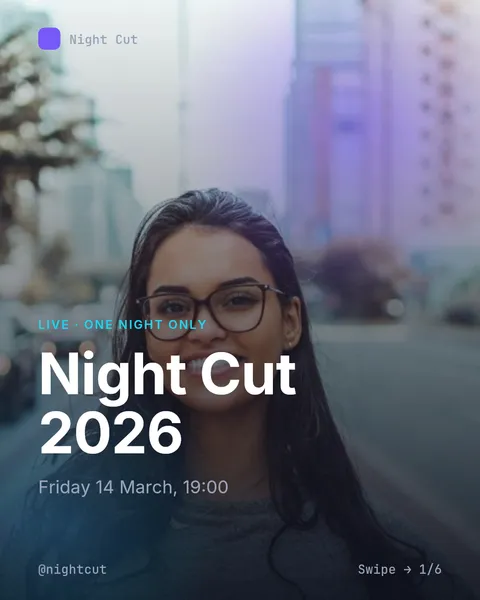
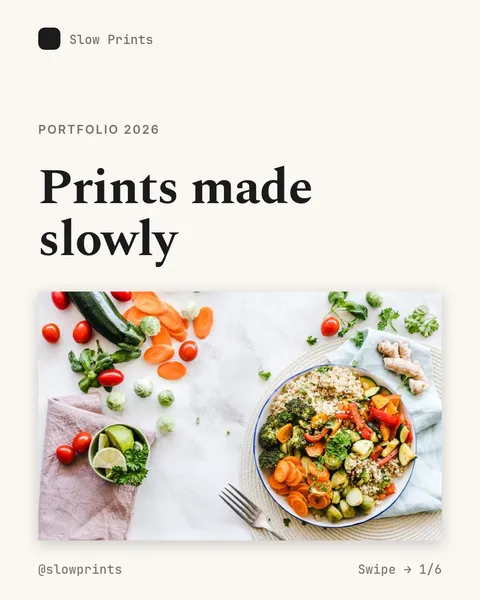
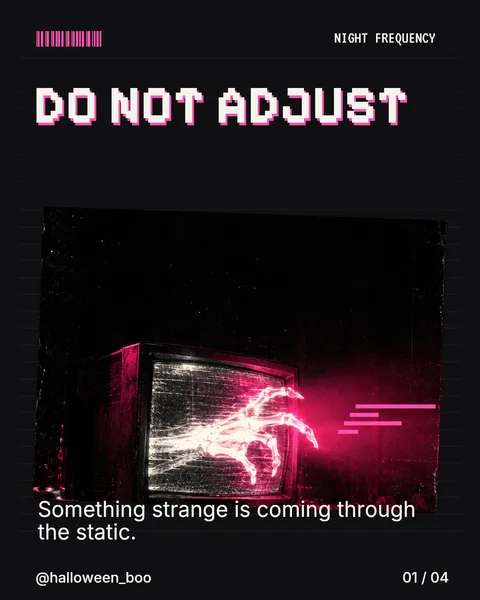
Instagram Carousel Size 2026: Dimensions and Safe Zones

Make your Instagram carousel slides work for your audience by following these four steps. We'll walk through creating a carousel announcing a new coffee shop menu using our template system.
Step 1: Set the right dimensions
Use 1080 × 1350 pixels for portrait orientation. This 4:5 ratio gives your content ample space in the feed while remaining readable on mobile screens. Create your slides using this canvas size to ensure consistency across the entire carousel.
Step 2: Design for readability
Keep important text within an 80-pixel margin from all edges. Treat that margin as a starting design suggestion, not a platform-required or guaranteed safe zone. Check crops and overlays in the actual upload preview. For body text, aim for a width of 780-880 pixels to ensure comfortable reading on mobile devices.
In our coffee shop example, we'll place the new menu items in the center of each slide, with pricing information clearly visible within the safe zone. Keep headlines concise (5-10 words) and ensure each slide communicates one clear idea.
Step 3: Create a compelling cover
Your cover slide must immediately communicate who it's for, what they'll get, and why they should swipe. In our coffee shop example, we'll use: "The new menu: drinks, sizes, and confirmed prices"
Test your cover by shrinking it to mobile size. If the message isn't clear without additional text, simplify your headline. Remember that Instagram crops previews differently in various surfaces, so central elements should remain intact.
Step 4: Prepare for upload
Before posting, check each slide:
- Every slide uses the same dimensions
- Text is readable at mobile size
- No important elements touch the edges
- Slide one makes one clear promise
- Slide two delivers on that promise
- Each slide provides value or moves the reader forward
- Files are numbered in posting order
Numbered filenames can help you select the intended order; verify that order explicitly in the publishing app. If you already have slides ready, use our Instagram Image Resizer to adjust dimensions quickly. For PDF conversions, try our PDF to Instagram Carousel Converter.
Checking and fixing common issues
If you notice text is too close to the edges, add padding to your design. If the cover headline is unclear, revise it to be more direct. Test your carousel on different devices to ensure it displays correctly everywhere. Remember that while these dimensions provide a solid foundation, the final appearance may vary slightly based on how Instagram displays previews in different contexts.
For official guidance on photo resolutions, refer to Instagram's help documentation.
How to do it in ViralityWand
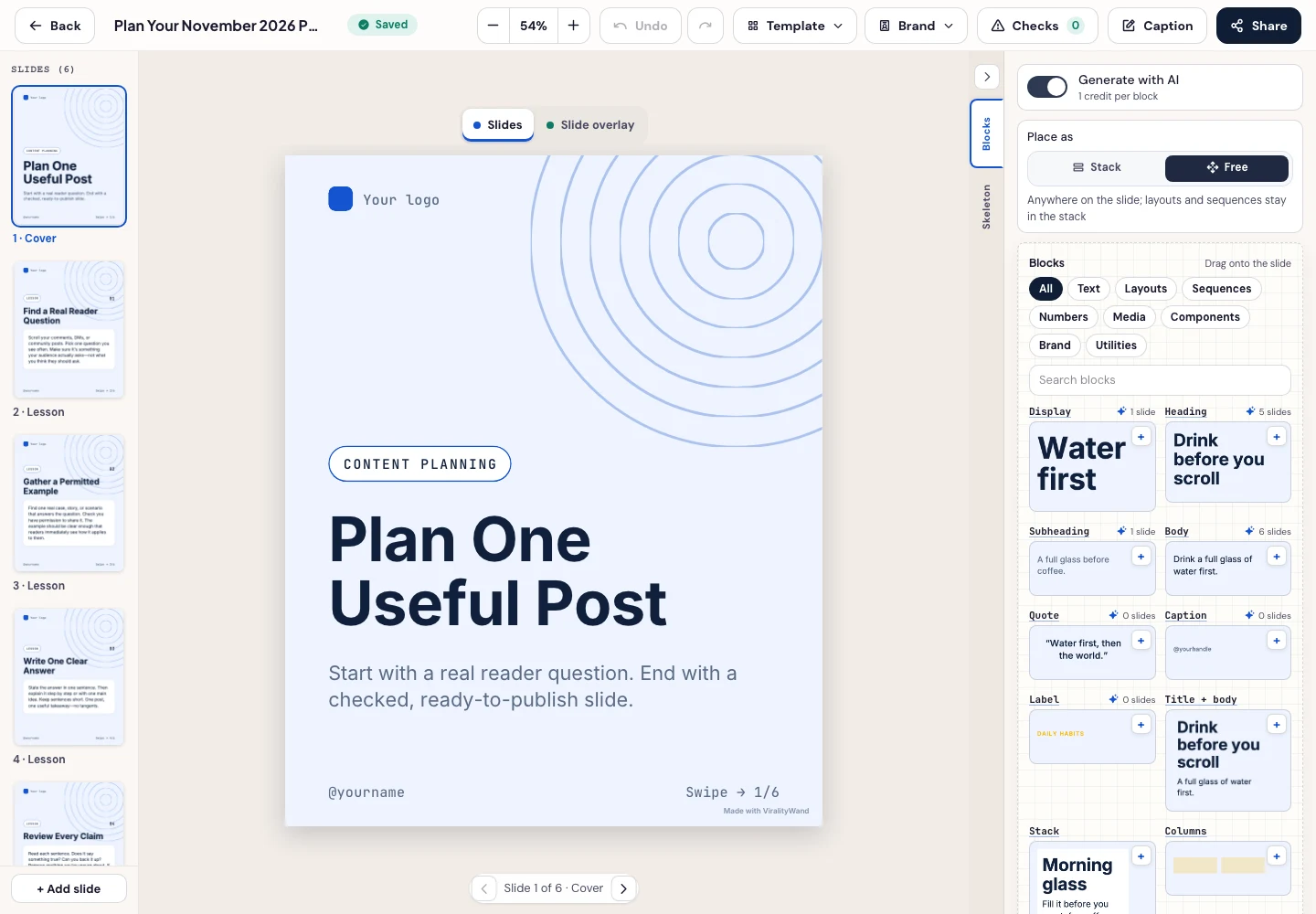
- Open this brief in ViralityWand. The link prefills the idea field; it does not start generation. Sign in if asked, then add your real source notes and replace any working placeholders.
- In Template, choose a layout that fits the explanation; inspect its structure instead of assuming it supports an exact slide count. Open Writing and choose English. Set Slides where the chosen template allows it. Lesson Series is a real text-led option to inspect, not a required choice. Browse matching templates.
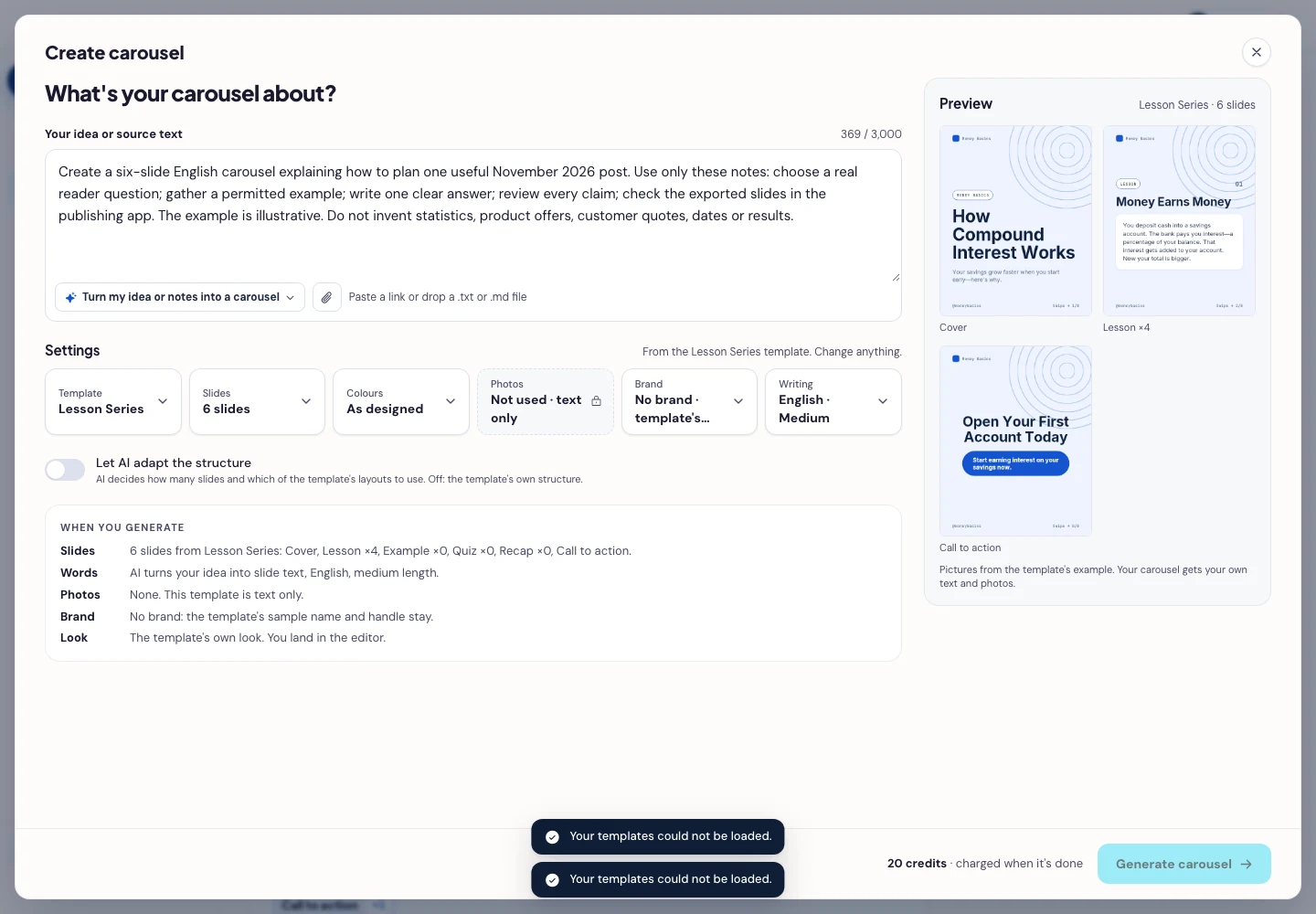
- Press Generate carousel only after checking the brief and the credit amount shown in the app. In the editor, review every slide, edit unsupported wording, and use Brand or the text controls to replace sample names, handles, and logos. Inspect the actual exported image dimensions and the Instagram upload preview; a template name is not proof of fit.
- Open Share → Download ZIP, unpack the slide images, and check their order, text and destination upload preview. This is a download workflow; publishing remains a separate step.
It feels good to have your first carousel going viral 😏
Just your idea, click-clack and voila! ViralityWand made just for that