How to make an Instagram carousel easier to understand

Clear wording helps people recognize what a carousel is about. It does not give the creator control over Instagram's search results. This guide uses an illustrative portfolio post to show how to choose language, deliver the promised answer, and check the final caption and images.
The example reader is a freelance designer preparing a portfolio post. The finish line is a seven-slide outline with a descriptive opening and a caption that gives context without repeating a keyword unnaturally.
1. Start with a real reader question
Choose a question you have heard or can reasonably identify as relevant, such as “What should I show in a design portfolio?” Search can help you explore how people describe that subject. A missing suggestion or result is not proof that there is demand or an uncontested opportunity.
Keep the question narrow enough to answer. A guide to selecting a few projects is a different task from building an entire portfolio website.
2. Write an opening the body can fulfill
For this constructed example, use “What to show when your design portfolio feels too broad.” It describes the problem without guaranteeing clients or visibility.
Plan the remaining slides:
- State the portfolio-selection question.
- Explain who should evaluate the portfolio.
- Select a project relevant to that audience.
- Explain the decision the project demonstrates.
- Show a permitted image with context.
- Identify a limitation or tradeoff honestly.
- Offer a final selection check.
The check is whether each project demonstrates a reason for the intended reader to consider the designer. It is not whether every slide contains the same phrase.
3. Draft from supplied material
Use project notes and permitted visuals rather than asking a model to invent successful client work. ViralityWand can help draft and design the slides from those materials. Remove any result, customer quote, or capability that was not supplied.
If a slide makes a broad promise, replace it with what the example actually shows. If the opening promises seven slides, verify the exported sequence contains seven rather than counting from memory.
4. Add context and accessibility
The caption can explain the intended audience and provide background that did not belong on the images. Use the topic's ordinary wording where it fits. There is no requirement to force an exact phrase into the first two lines or a subheading.
Where the publishing interface supports alternative text, describe meaningful visual information. Alternative text is for accessibility, not a place to repeat keywords. Choose relevant hashtags within the current limit shown by the app instead of treating a generated list as an instruction to use every tag.
5. Inspect before publishing and review cautiously
Check text size, contrast, image permission, and the actual upload preview. An editor's layout is not proof that the destination will display everything as intended.
Observe results over a defined period and compare them with the goal. Saves, comments, and profile visits describe different actions. A low count does not identify its own cause, and a caption edit cannot promise improved search visibility. Keep the wording accurate and useful even when the analytics are inconclusive.
How to do it in ViralityWand
- Open this brief in ViralityWand. The link prefills the idea field; it does not start generation. Sign in if asked, then add your real source notes and replace any working placeholders.
- In Template, choose a layout that fits the explanation; inspect its structure instead of assuming it supports an exact slide count. Open Writing and choose English. Set Slides where the chosen template allows it. Lesson Series is a real text-led option to inspect, not a required choice. Browse matching templates.
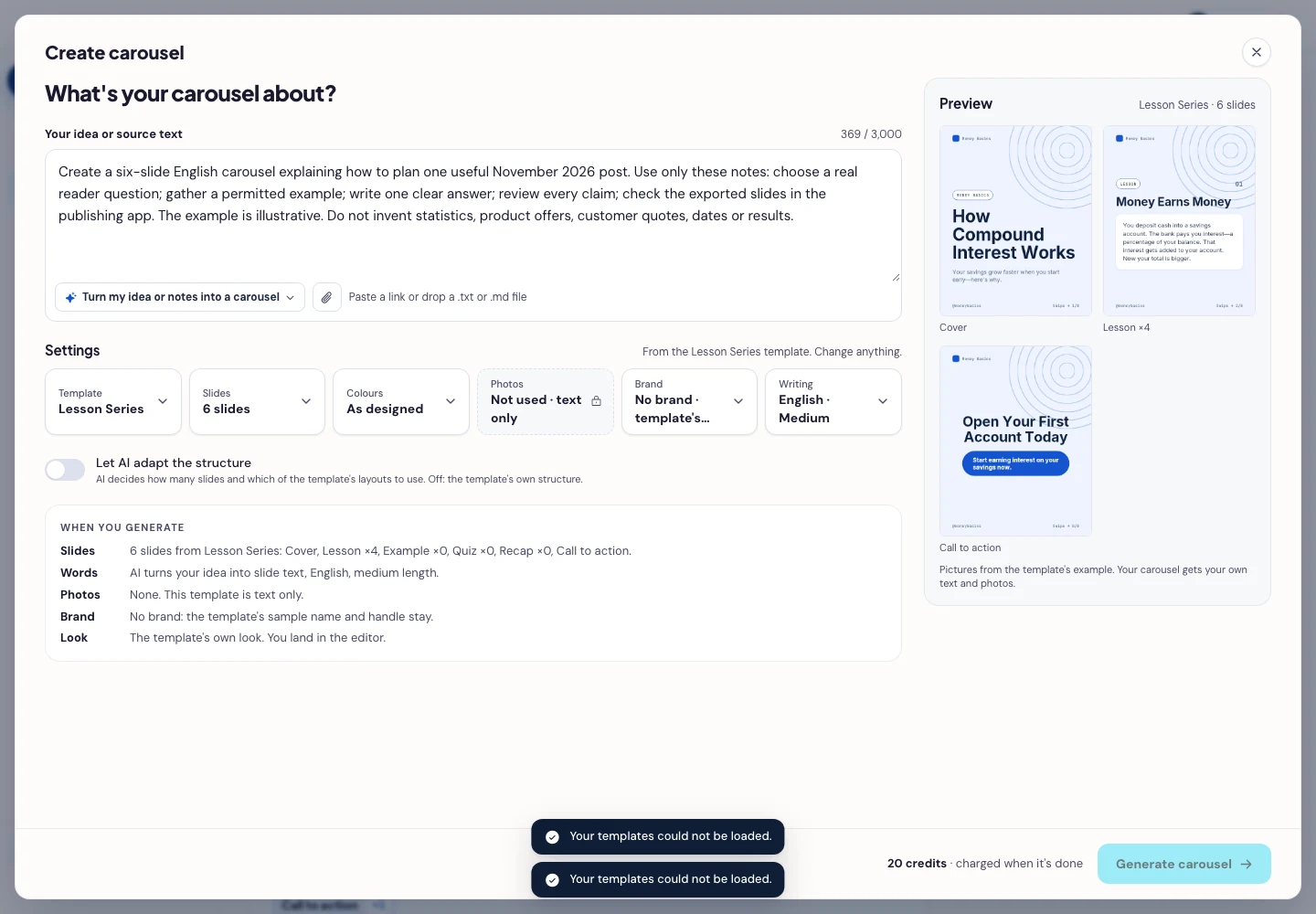
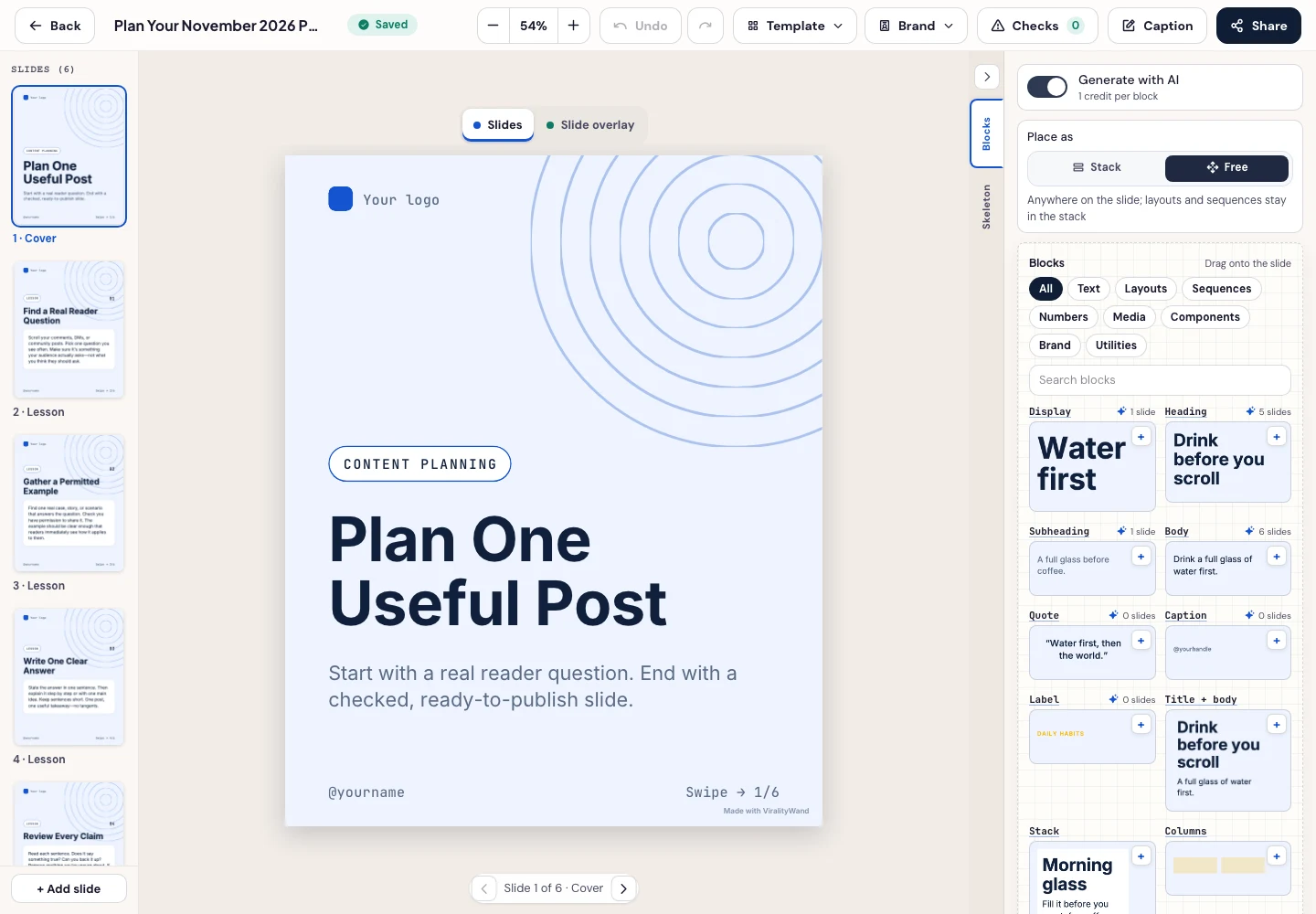
- Press Generate carousel only after checking the brief and the credit amount shown in the app. In the editor, review every slide, edit unsupported wording, and use Brand or the text controls to replace sample names, handles, and logos. Keep the slide count and the opening promise consistent; review the caption and accessibility separately.
- Open Share → Download ZIP, unpack the slide images, and check their order, text and destination upload preview. This is a download workflow; publishing remains a separate step.
Further reading: TikTok's own guide to Creator Search Insights · free caption generator · AI Slop Detector · free hashtag generator · Google’s platform-property setup guide.
It feels good to have your first carousel going viral 😏
Just your idea, click-clack and voila! ViralityWand made just for that