How to edit a LinkedIn carousel into something specific

A useful LinkedIn carousel should help a particular reader understand a particular decision. This guide takes an illustrative post about a confusing client handoff and turns it into a short explanation. The example is constructed; it is not a customer case study or a measured engagement result.
The finish line is a slide outline that contains a real problem, an inspectable change, and a check the reader can reuse. No publishing format or editing trick guarantees views, saves, or immunity from being classified as AI-generated.
1. Collect material before asking for a post
Start with the documents or observations you actually have. For this example, imagine a welcome email that places the file-upload link after several paragraphs. A client question asks where to send the files. The revised email puts the link beside the instruction.
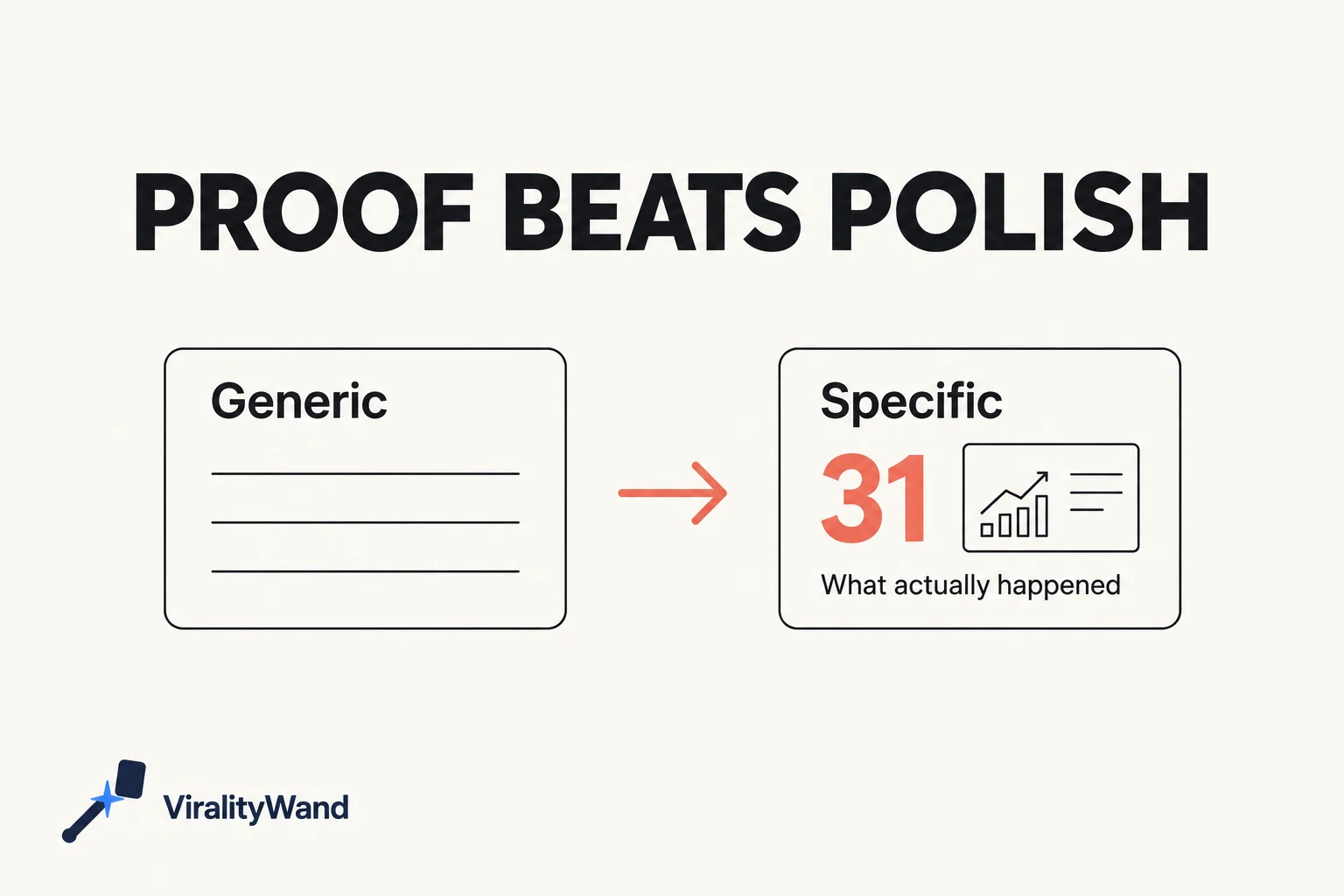
That is enough material for an explanation. It does not establish how many clients had the problem or whether the change improved conversion. Keep missing information in working notes instead of filling it with a percentage.
A weak opening would be “Communication is the key to client success.” A more useful one is “Where this welcome email hid the upload link.” The second gives the reader something the following slides can show.
2. Make the difference visible
Choose the part of the document needed to understand the issue. Remove names, addresses, and private project details. Get permission if the material belongs to a customer. A reconstruction must be labeled as one.
The illustrative slide sequence can be:
- The upload-link question the post will answer.
- A reconstructed excerpt showing the old placement.
- The decision: put the link beside the requested action.
- A reconstructed revised paragraph.
- A check readers can apply to their own welcome email.
The final check is concrete: can someone find the destination and the requested file information without reading unrelated material? That is a useful editorial test, not evidence of a platform ranking benefit.
3. Use AI to arrange the evidence
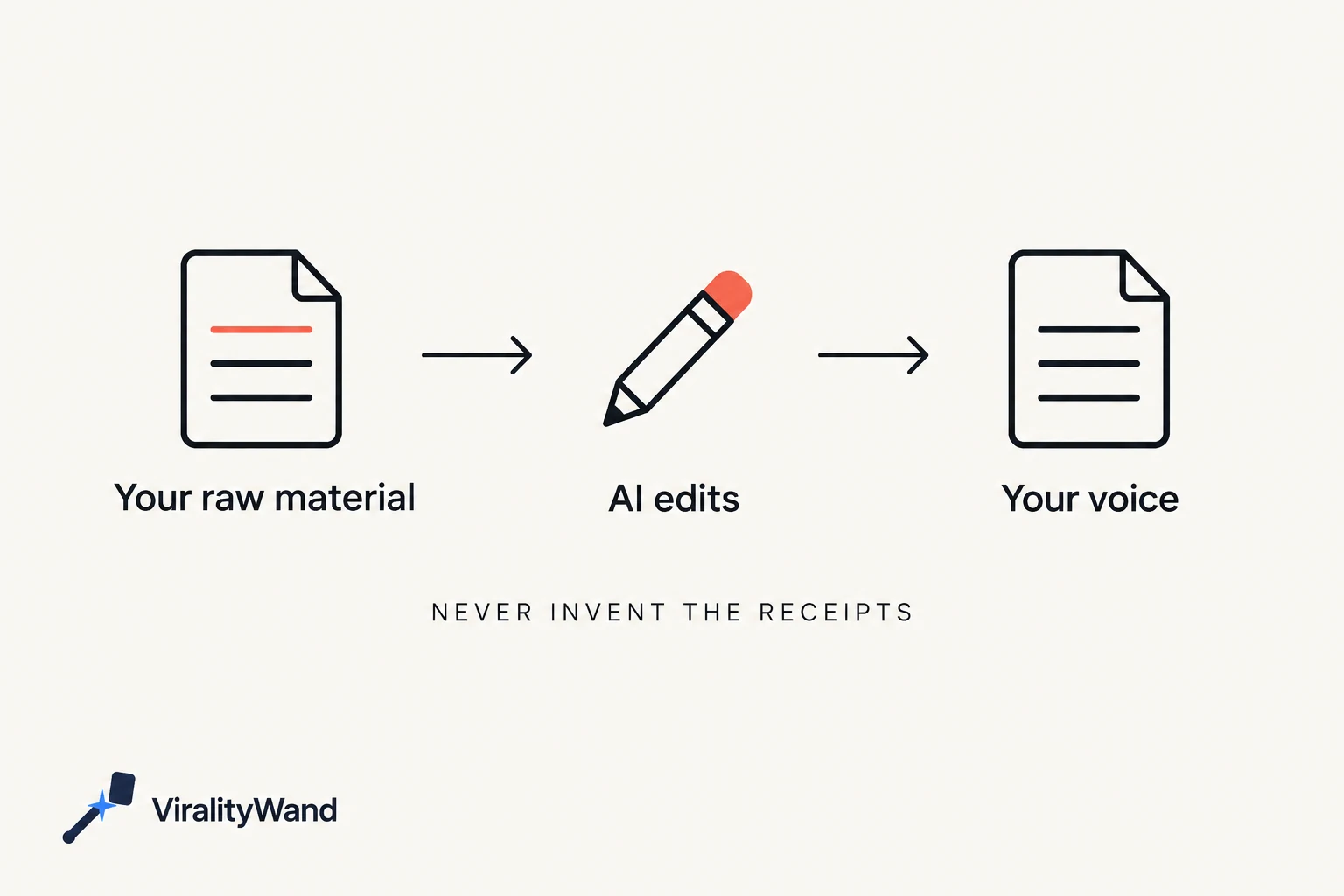
Supply the excerpts and the reason for the change. A short prompt can constrain the draft:
Use only the supplied excerpts and editing notes.
Draft five carousel slides explaining the link-placement change.
Label reconstructed material as illustrative.
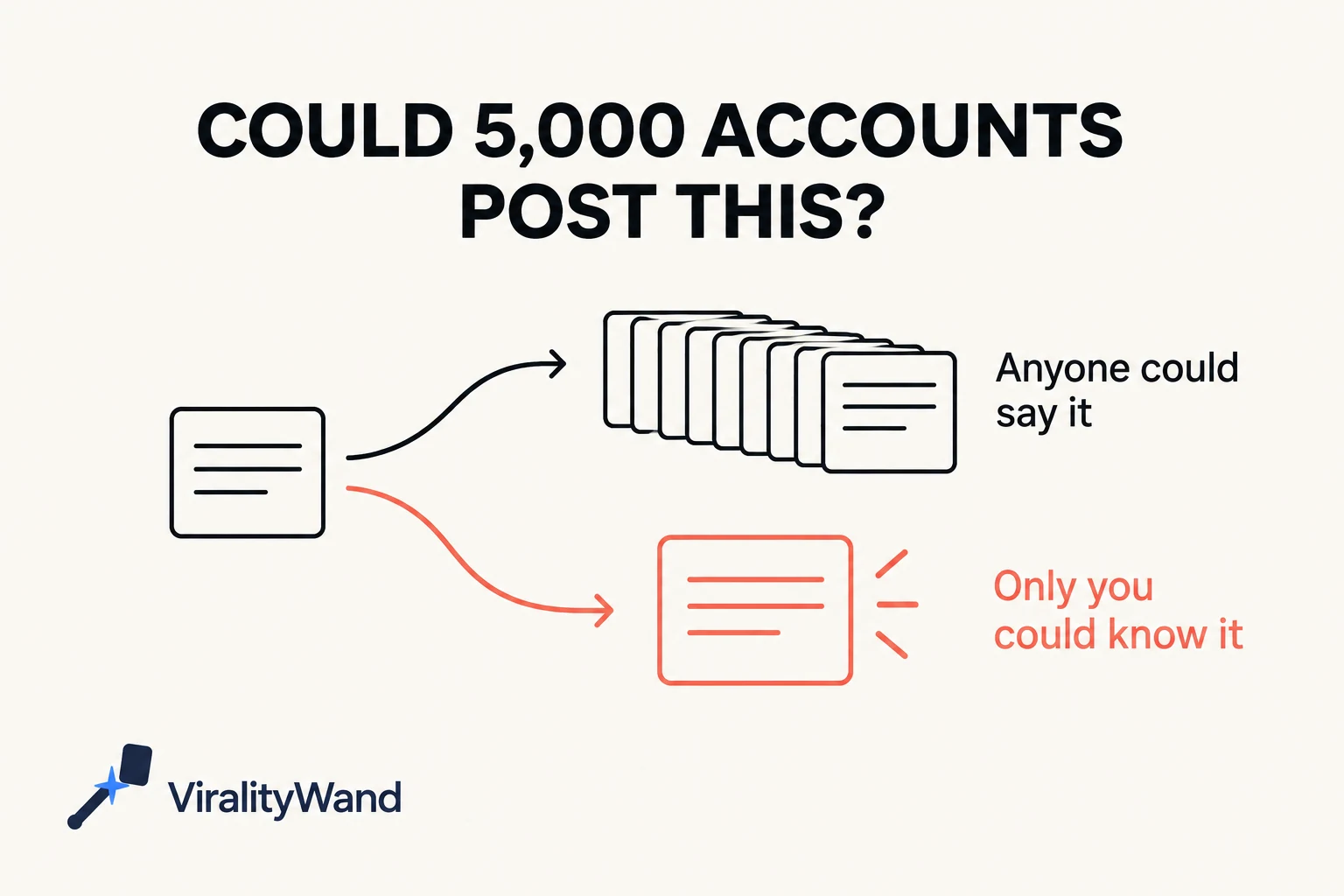
Do not invent client quotes, percentages, or results.
Flag any missing evidence in separate working notes.
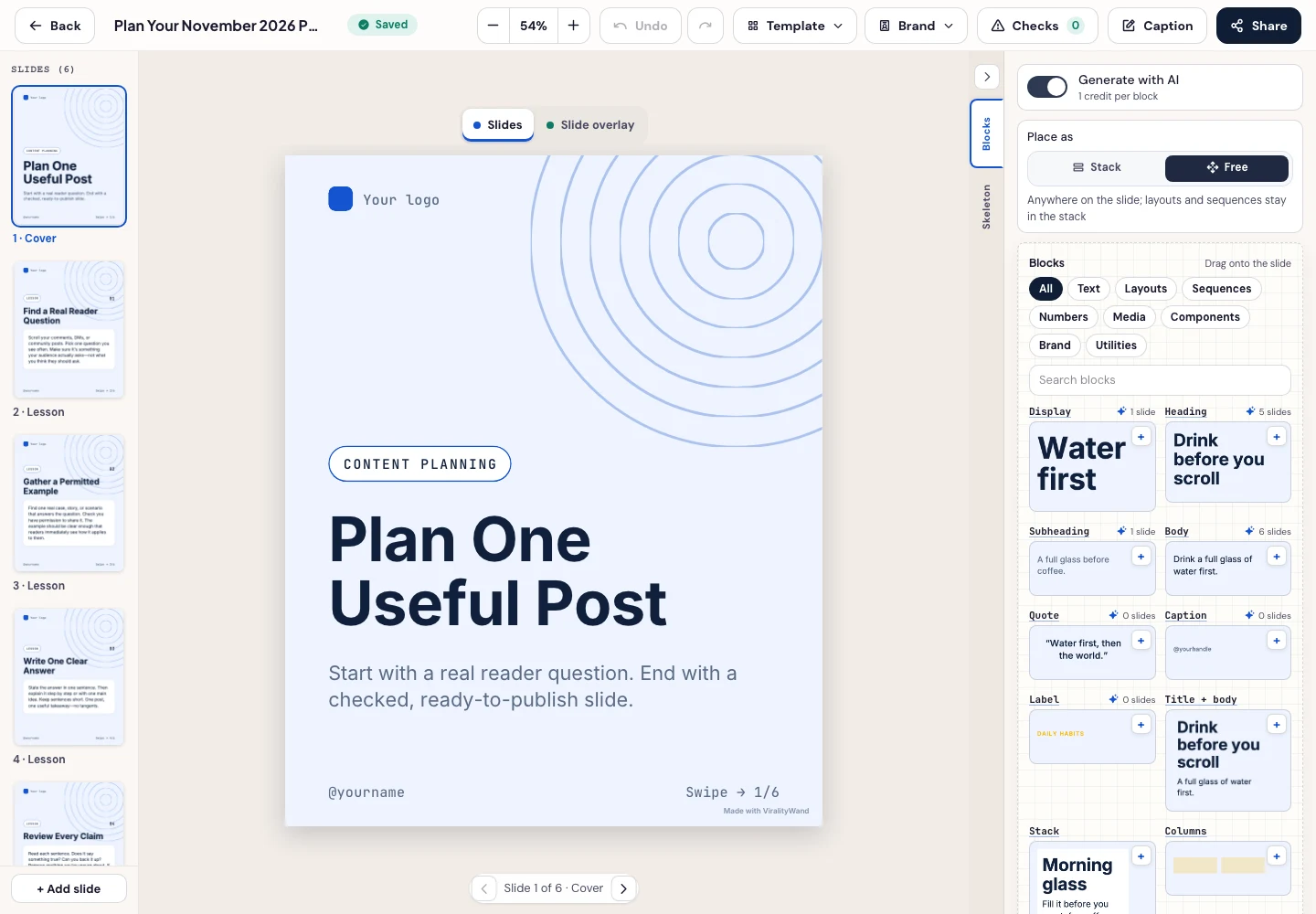
ViralityWand can help turn approved source material into editable carousel drafts and designed slides. Compare the draft against the excerpts before selecting a layout. Remove any claim the source does not establish. A confident line about improved engagement is still unsupported if no engagement data was supplied.
4. Give the useful answer inside the carousel
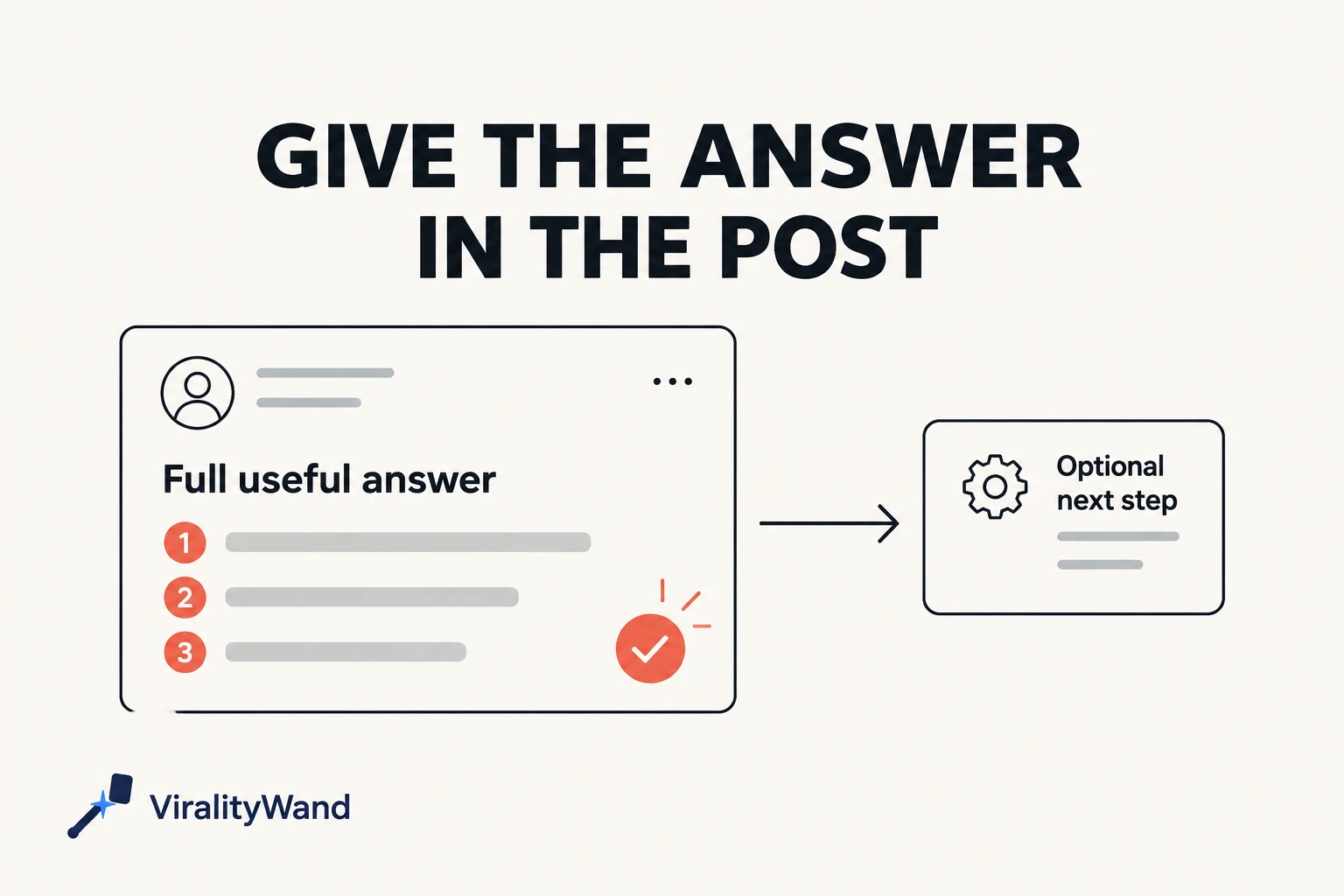
Show the revised paragraph in the post itself. Readers should not have to leave LinkedIn just to discover what changed. A longer source article can be an optional continuation for people who need more detail.
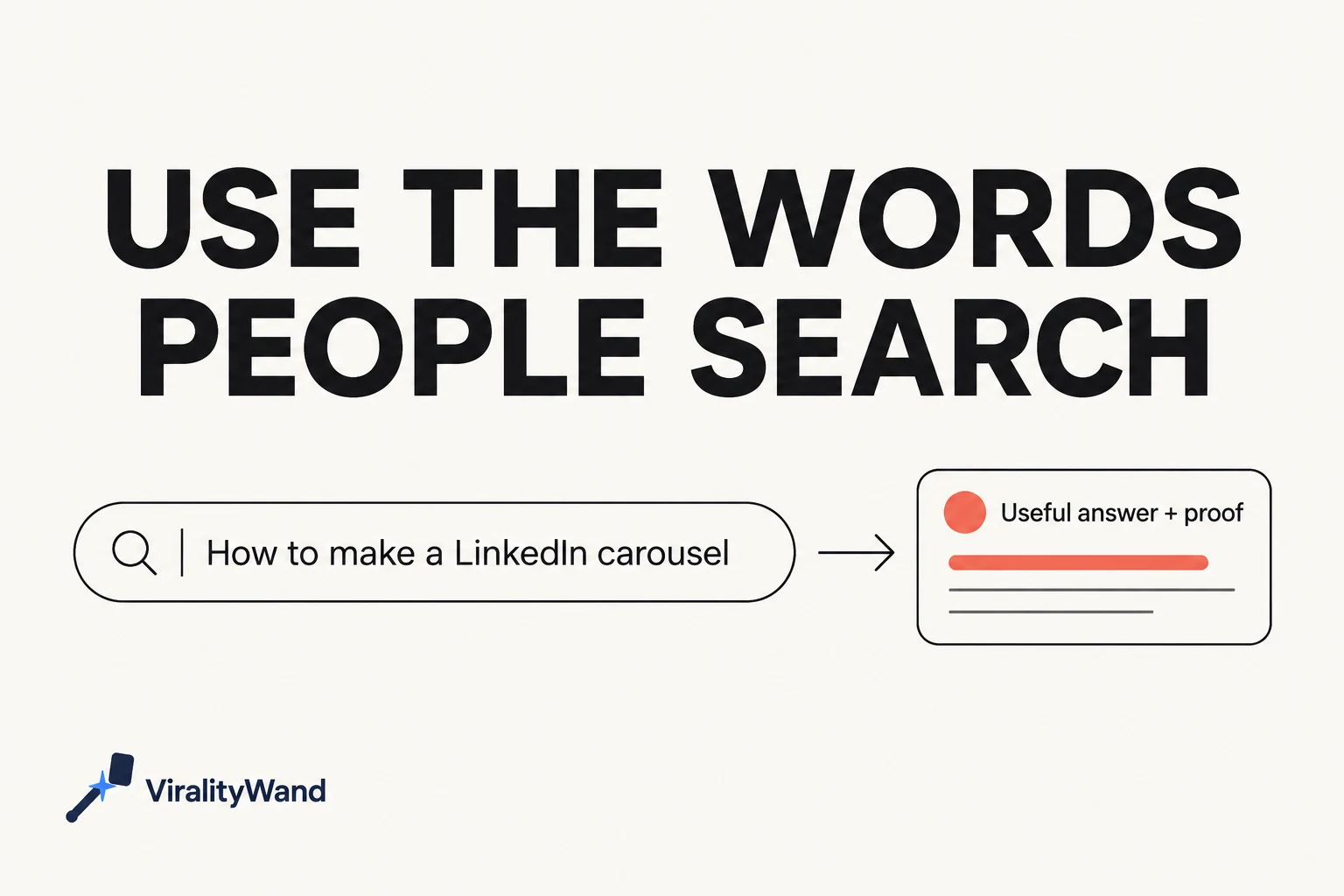
Use descriptive language in the title and caption so people can tell what the post covers. This makes the topic clearer; it does not guarantee discovery in search. Do not turn a reader's question into an assertion about what most businesses get wrong.
5. Check the final artifact
Read the opening, the example, and the final check in order. If the example answers a different question, change the opening. If a slide repeats the same general advice, remove it. Inspect the exported file for readable text and consistent page sizes, then check the destination's upload preview.
The graphics below are editorial illustrations of the approach, not measured LinkedIn performance or a record of tests conducted for this article. Your own source notes, permitted screenshots, and documented results are what make the next post specific.
When the outline and source notes are ready, open the carousel composer with this task and add the actual material before generating. Search business templates to compare available structures. Review the wording and replace sample branding in the editor before downloading. Choose the intended output language in Writing before generating.
Further reading: LinkedIn’s update · Socialinsider’s analysis · TikTok’s explanation.
It feels good to have your first carousel going viral 😏
Just your idea, click-clack and voila! ViralityWand made just for that