How to plan November LinkedIn posts from existing work

A November content plan can start with work already done: a decision, a correction, or an explanation that a customer needed. This guide uses a fictional design studio to build a small plan and prepare one carousel. It is an illustrative planning exercise, not a claim about seasonal LinkedIn performance.
The studio wants prospective clients to understand how it makes design choices. The useful output is a plan containing a few distinct posts, the evidence needed for each, and one complete slide outline.
1. Choose a reader and one question
For the studio, the reader is a small-business owner preparing a website brief. The question is “What does a designer need before suggesting a homepage?” That is narrower than posting about creativity or personal branding generally.
Write the answer in ordinary language before choosing a format. In this example: the designer needs the audience, the action visitors should take, and the constraints that will affect the page. These are planning inputs, not a guarantee of a particular business result.
2. Turn available material into different posts
Inventory material the studio can show without exposing a client's private information. A sample brief, an annotated sketch, and a short explanation of a rejected layout can support different posts. Do not describe those examples as customer work unless they really are.
An illustrative November plan might contain:
| Post | Reader question | Material to prepare |
|---|---|---|
| A short text explanation | Why is this question in the brief? | One question and the decision it informs |
| A carousel | What belongs in a useful homepage brief? | A labeled sample brief and a slide outline |
| An annotated image | Why was this layout rejected? | A permitted image and the actual constraint |
| A follow-up answer | What is still confusing? | A real question, if one is received |
Choose dates that fit the team's capacity. November does not create a universal posting schedule, and there is no need to invent a question because the calendar reserved a follow-up slot.
3. Prepare one complete carousel
For the brief example, use an opening such as “What to prepare before asking for a homepage design.” The next slides can show a sample audience description, a clear visitor action, and a constraint such as supplied assets or a fixed launch date. The final slide can give the reader a short checklist for their own brief.
ViralityWand can help draft and design that sequence from supplied notes. Review the generated text and choose an appropriate available layout. Do not assume there is a particular template name, an automatic chart-extraction step, or an animation feature.
4. Review the document and upload preview
Check whether each slide answers the opening question. Replace vague advice with an example and remove facts not present in the source. Keep the file readable on a phone and use consistent page dimensions.
LinkedIn's document guidance recommends PDF when possible and explains its current file requirements. Animations in an uploaded document display as static images; do not build the explanation around a transition. Inspect the preview before publishing.
5. Record what the plan helped accomplish
After posting, record the date, the format, and observations relevant to the goal. A useful question from a prospective client is different from an impression count. Neither alone proves that a particular slide caused the result.
Keep the planning notes with the assets so a later update does not begin from a blank calendar. The purpose of the plan is to make useful posts feasible, not to manufacture a post for every empty square.
How to do it in ViralityWand
- Open this brief in ViralityWand. The link prefills the idea field; it does not start generation. Sign in if asked, then add your real source notes and replace any working placeholders.
- In Template, choose a layout that fits the explanation; inspect its structure instead of assuming it supports an exact slide count. Open Writing and choose English. Set Slides where the chosen template allows it. Lesson Series is a real text-led option to inspect, not a required choice. Browse matching templates.
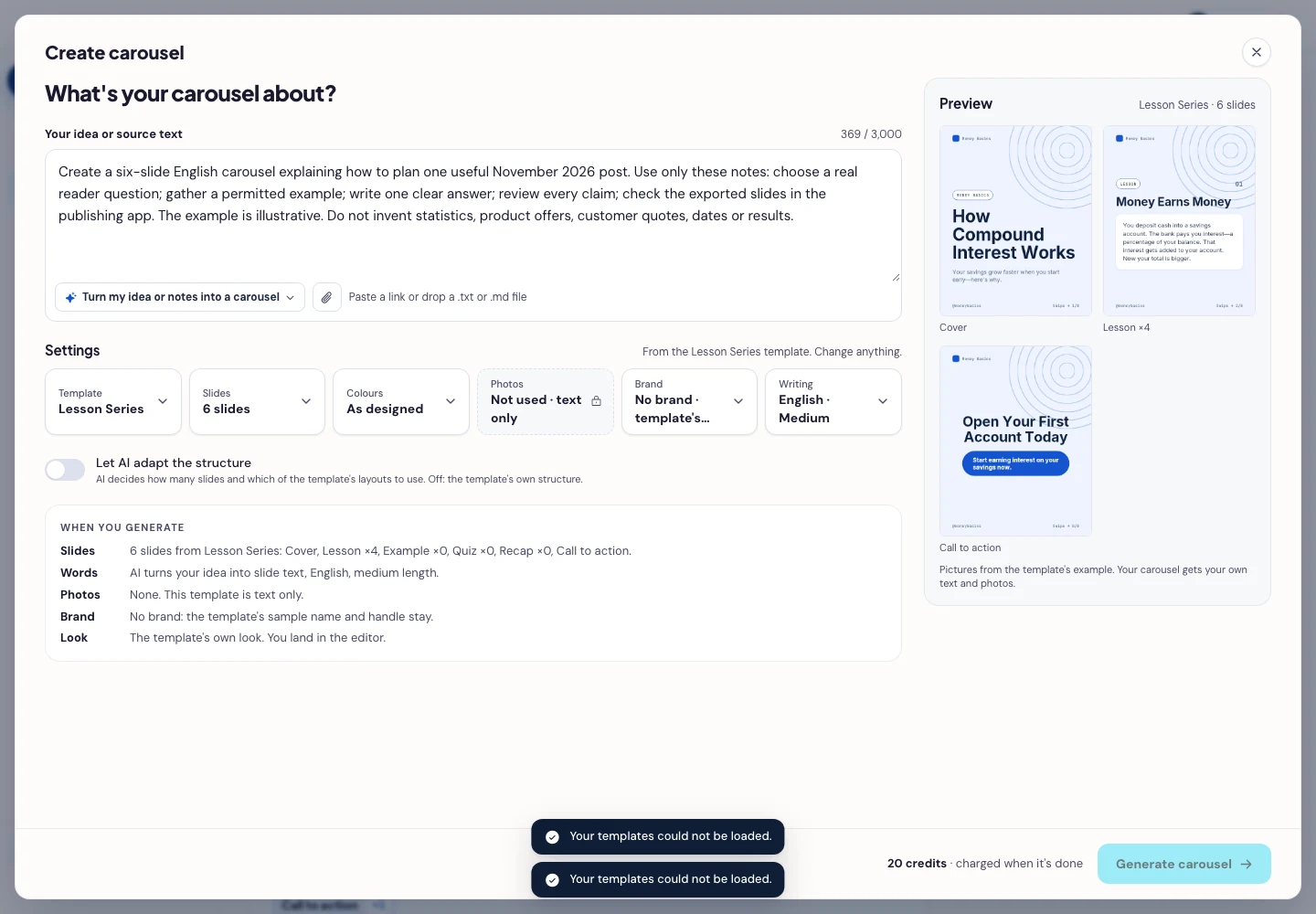
- Press Generate carousel only after checking the brief and the credit amount shown in the app. In the editor, review every slide, edit unsupported wording, and use Brand or the text controls to replace sample names, handles, and logos. Download ZIP contains slide images. If publishing a LinkedIn document, assemble and inspect a PDF using a separate document workflow you have verified.
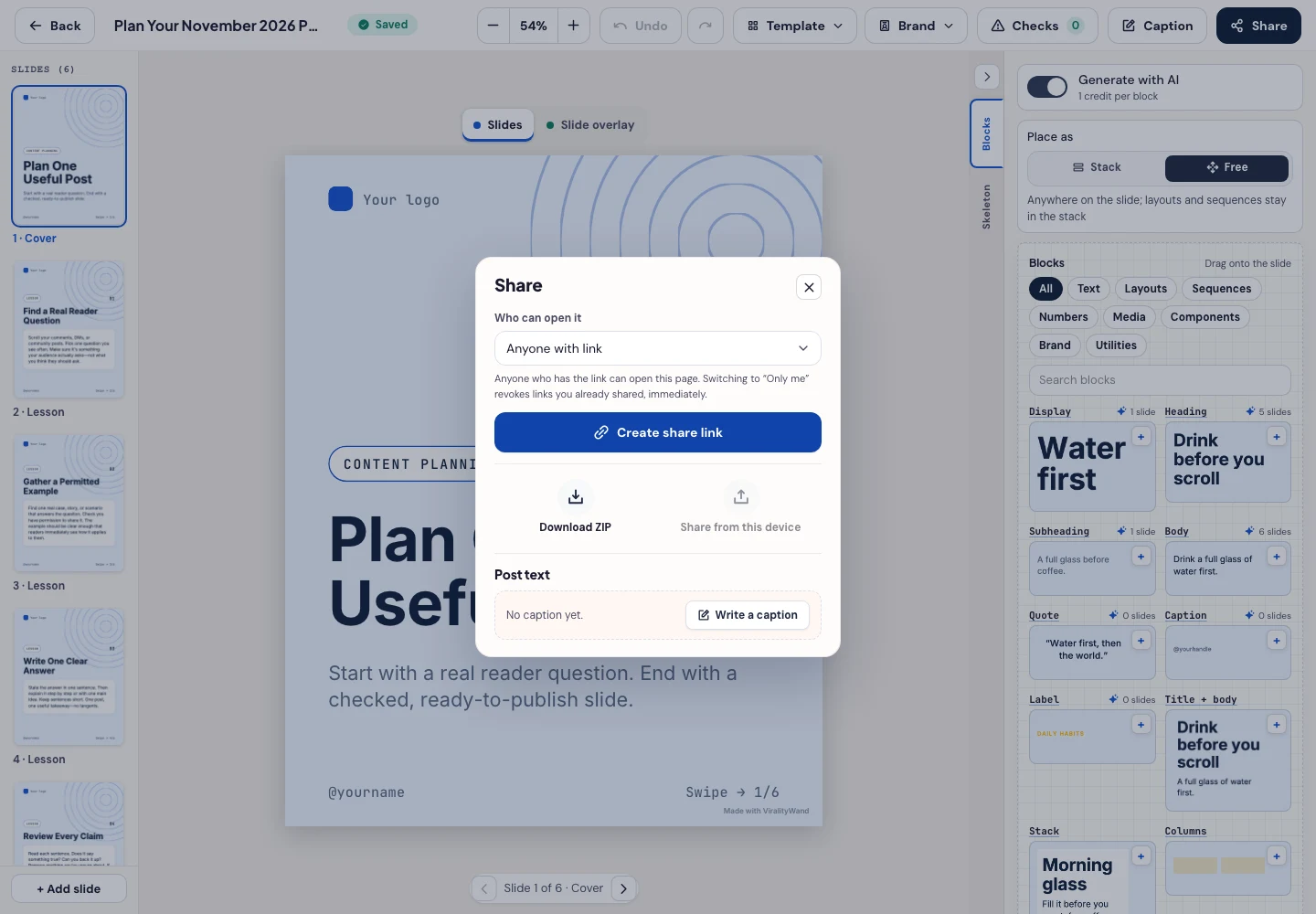
- Open Share → Download ZIP, unpack the slide images, and check their order, text and destination upload preview. This is a download workflow; publishing remains a separate step.
Further reading: thought-leadership content calendar · LinkedIn carousel maker · social media text formatter · engagement rate calculator.
It feels good to have your first carousel going viral 😏
Just your idea, click-clack and voila! ViralityWand made just for that