How to size and preview a TikTok photo carousel

A photo carousel needs to remain readable inside the publishing app, where captions and interface controls share the screen. A canvas size is only a starting decision. The actual upload preview is where to check what remains visible.
This guide uses a fictional weekend-trip checklist as a worked example. The output is a set of consistent slides and a checked preview. No layout choice here guarantees saves, views, or identical display on every device.
1. Check the current publishing route
Confirm the accepted images and limits in the TikTok interface you are using. The linked photo posting API reference describes an API workflow; its requirements should not be assumed to describe every consumer-app screen.
A 1080 × 1920 canvas is one vertical design starting point, subject to the actual destination requirements. Keep the canvas consistent across the set. Do not call any fixed margin a guaranteed safe area: overlays and crops need checking in context.
2. Write the sequence before laying it out
For the illustrative trip post, use five slides:
- “Before booking a weekend trip, write down these constraints.”
- “Record the available dates and the latest acceptable return time.”
- “Set a total budget and note which costs it must cover.”
- “Check the journey and any booking conditions before committing.”
- “Keep the dates, budget, and unresolved booking question in one note.”
These are planning prompts, not a complete travel recommendation. A real destination-specific post would need current information and its own sources. The example avoids invented prices and a sample itinerary with unverified connections.
3. Design for the actual amount of text
Use a clear hierarchy: the action first, then the short explanation needed to perform it. Keep important wording away from areas likely to overlap controls, while leaving room to revise after previewing.
ViralityWand can help arrange supplied copy as editable carousel slides. Inspect the draft rather than accepting a layout because it looks finished. If slide four is too dense, shorten the explanation or split it. Reducing every font size to keep five slides would undermine the point of the design.
4. Inspect the exported images in order
Open the downloaded files and confirm that each slide has the intended size, text, and sequence. File naming alone is not proof of the final upload order. Check that no placeholder, cropped line, or unexpected empty slide remains.
In the example, the return-time line belongs on slide two. If it appears only in a caption outside the image, decide whether that separation still gives the reader the information the slide promises.
5. Use the upload preview to fix the real problem
Load the images into the destination composer. Check the cover preview and each slide with the interface visible. If a line sits behind a control, move or shorten that line and inspect the revised export again. Increasing font size alone may make the collision worse.
Use the TikTok carousel maker if it fits the drafting workflow, then perform these same checks. The finished task is a readable, correctly ordered post in the actual preview. Performance claims require different evidence.
How to do it in ViralityWand
- Open this brief in ViralityWand. The link prefills the idea field; it does not start generation. Sign in if asked, then add your real source notes and replace any working placeholders.
- In Template, choose a layout that fits the explanation; inspect its structure instead of assuming it supports an exact slide count. Open Writing and choose English. Set Slides where the chosen template allows it. Lesson Series is a real text-led option to inspect, not a required choice. Browse matching templates.
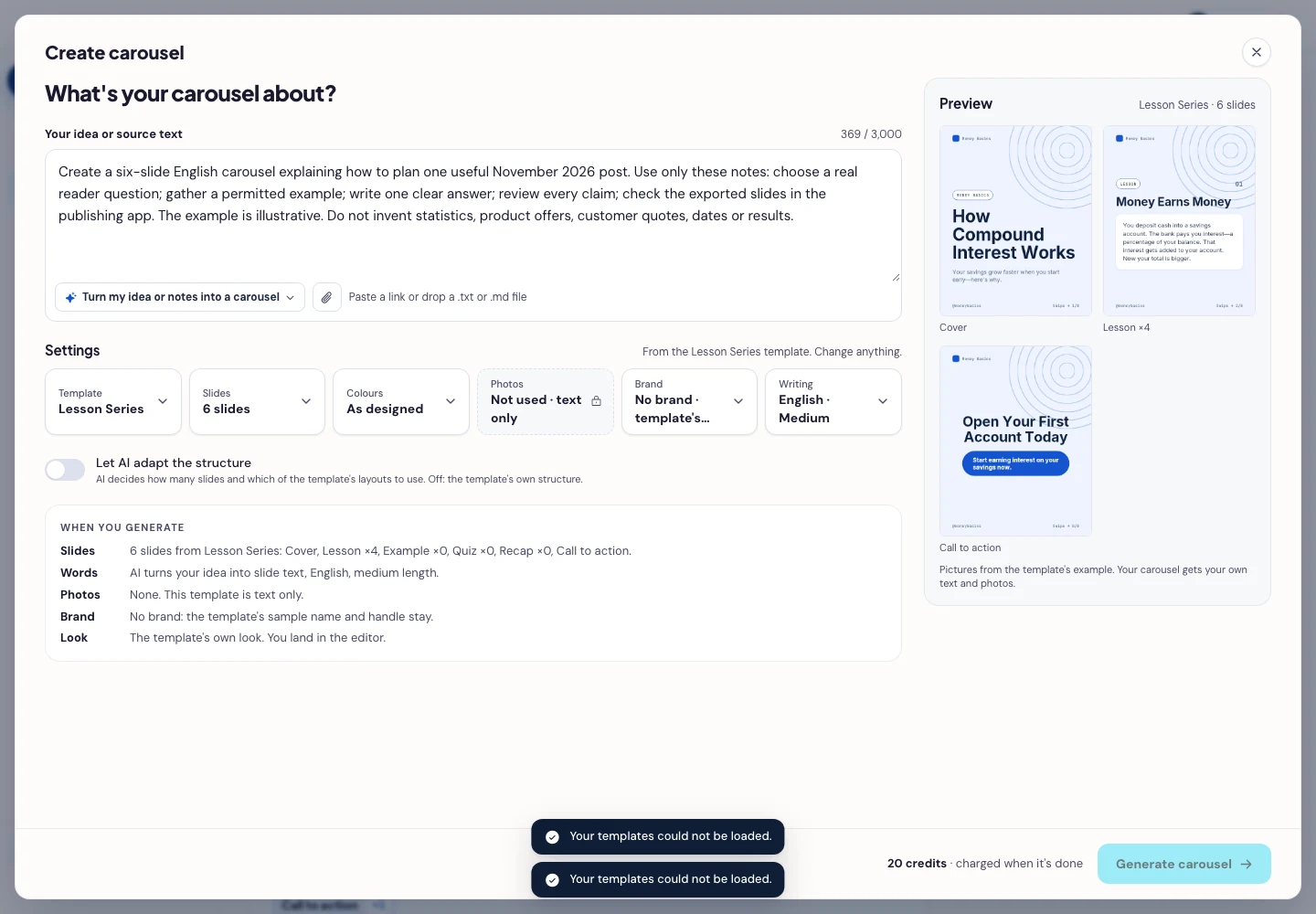
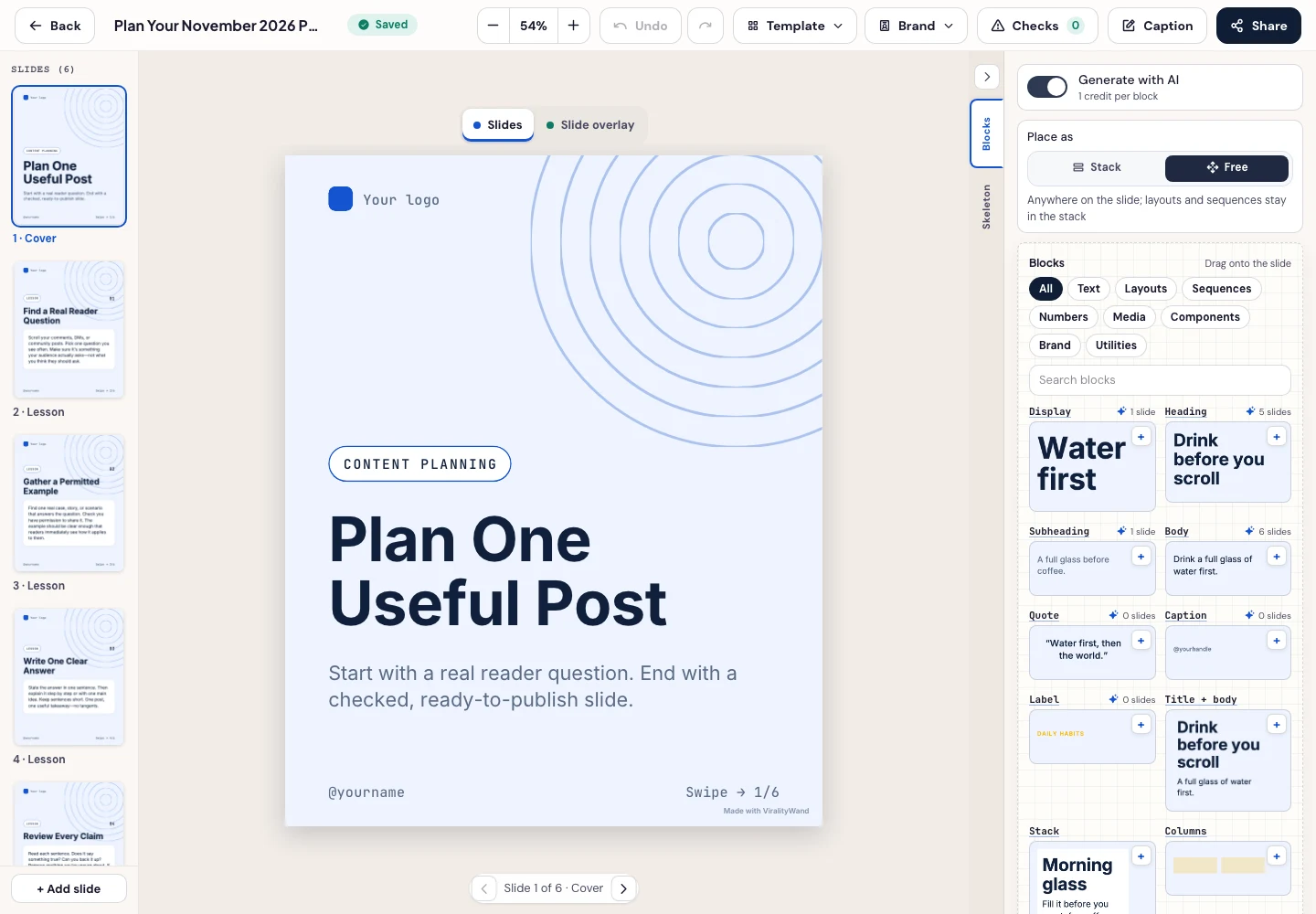
- Press Generate carousel only after checking the brief and the credit amount shown in the app. In the editor, review every slide, edit unsupported wording, and use Brand or the text controls to replace sample names, handles, and logos. Check slide order and control overlays inside TikTok before posting.
- Open Share → Download ZIP, unpack the slide images, and check their order, text and destination upload preview. This is a download workflow; publishing remains a separate step.
It feels good to have your first carousel going viral 😏
Just your idea, click-clack and voila! ViralityWand made just for that