How to brief ViralityWand without inventing the proof

A useful carousel brief gives the drafting tool something specific to preserve. This guide turns a small set of illustrative product notes into an editable outline, then explains how to check the result. The example is constructed and includes no customer measurements or performance claims.
The finish line is a reviewed draft that accurately explains one choice. It is not a promise that a prompt can recover reach or make a post go viral.
1. Separate facts from the desired message
Imagine a stationery shop preparing a November post about choosing a notebook. Its working notes contain the available sizes, paper specifications, prices, and a few permitted photos. The message is that the right choice depends on how the notebook will be used.
Keep confirmed product facts separate from the proposed angle. If a price or stock detail is missing, mark it as unknown in working notes. Do not ask the model to make the brief look complete by supplying a plausible number.
A compact brief can contain the audience, the question, the facts that answer it, and the desired reader decision. This is more useful than a topic followed by “make it engaging.”
2. Give the draft a bounded job
Supply the notes to the carousel drafting workflow. A prompt can be short while still imposing useful limits:
Use only these supplied notebook specifications and notes.
Help a student choose a size for their stated use.
Draft a carousel with one clear choice or explanation per slide.
Do not invent prices, stock, testimonials, or results.
Keep uncertain details in separate working notes.
There is no need to assign the model imaginary credentials. The constraints are what make the request useful.
3. Inspect one complete outline
For the illustrative example, a possible sequence is:
- The question: which notebook size fits this use?
- What the student needs to carry or write.
- The relevant supplied size information.
- The practical tradeoff between the available options.
- A check to make before choosing.
Each slide must correspond to information in the notes or clearly labeled advice. If the model adds a claim that students prefer one option, ask where that information came from. Remove it when there is no source.
4. Edit the generated wording before designing
Compare every product statement against the original notes. Keep qualifications that matter. A phrase like “fits this bag in the supplied photo” must not become “fits every bag.” Shorter wording is useful only while it preserves the meaning.
Read the slides in order without looking at the brief. Fix repeated introductions, vague pronouns, and an ending that asks for an unrelated action. A hook should describe the choice the post actually explains.
5. Check the designed slides and export
ViralityWand can help prepare designed slides from the approved material. Select an appropriate available layout and inspect text fit, contrast, image cropping, and page order. Shorten an overloaded sentence rather than assuming a smaller font solves everything.
Check the exported file and the publishing app's preview before sharing. Use the current destination requirements for format and size. The editor cannot guarantee that every preview surface will frame the file identically.
Keep the notes, accepted copy, and export together. A later seasonal update can then change the actual facts instead of asking a model to invent a new campaign around a different month.
How to do it in ViralityWand
- Open this brief in ViralityWand. The link prefills the idea field; it does not start generation. Sign in if asked, then add your real source notes and replace any working placeholders.
- In Template, choose a layout that fits the explanation; inspect its structure instead of assuming it supports an exact slide count. Open Writing and choose English. Set Slides where the chosen template allows it. Lesson Series is a real text-led option to inspect, not a required choice. Browse matching templates.
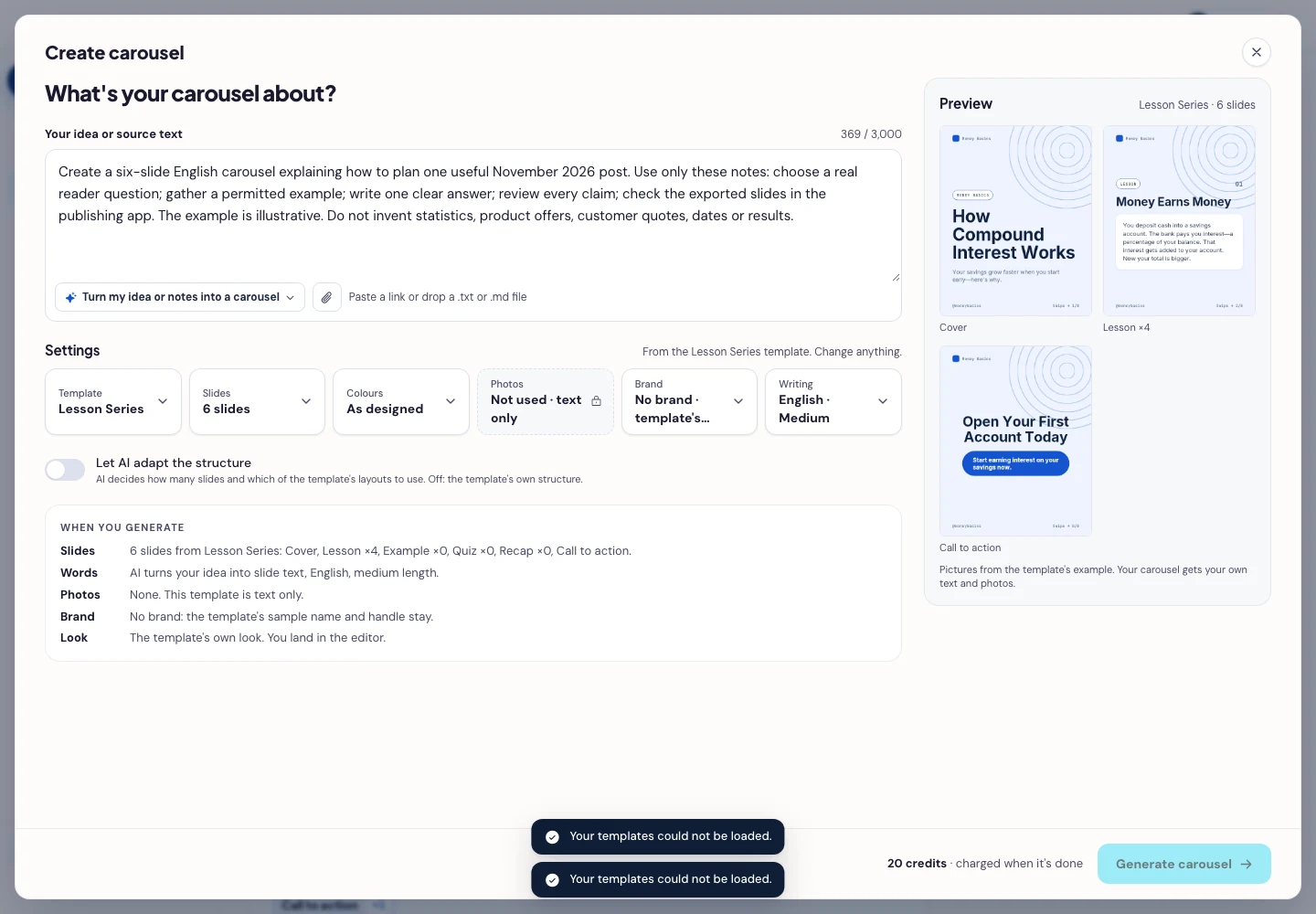
- Press Generate carousel only after checking the brief and the credit amount shown in the app. In the editor, review every slide, edit unsupported wording, and use Brand or the text controls to replace sample names, handles, and logos. Resolve UNKNOWN notes before publishing; keep them out of the finished customer-facing copy.
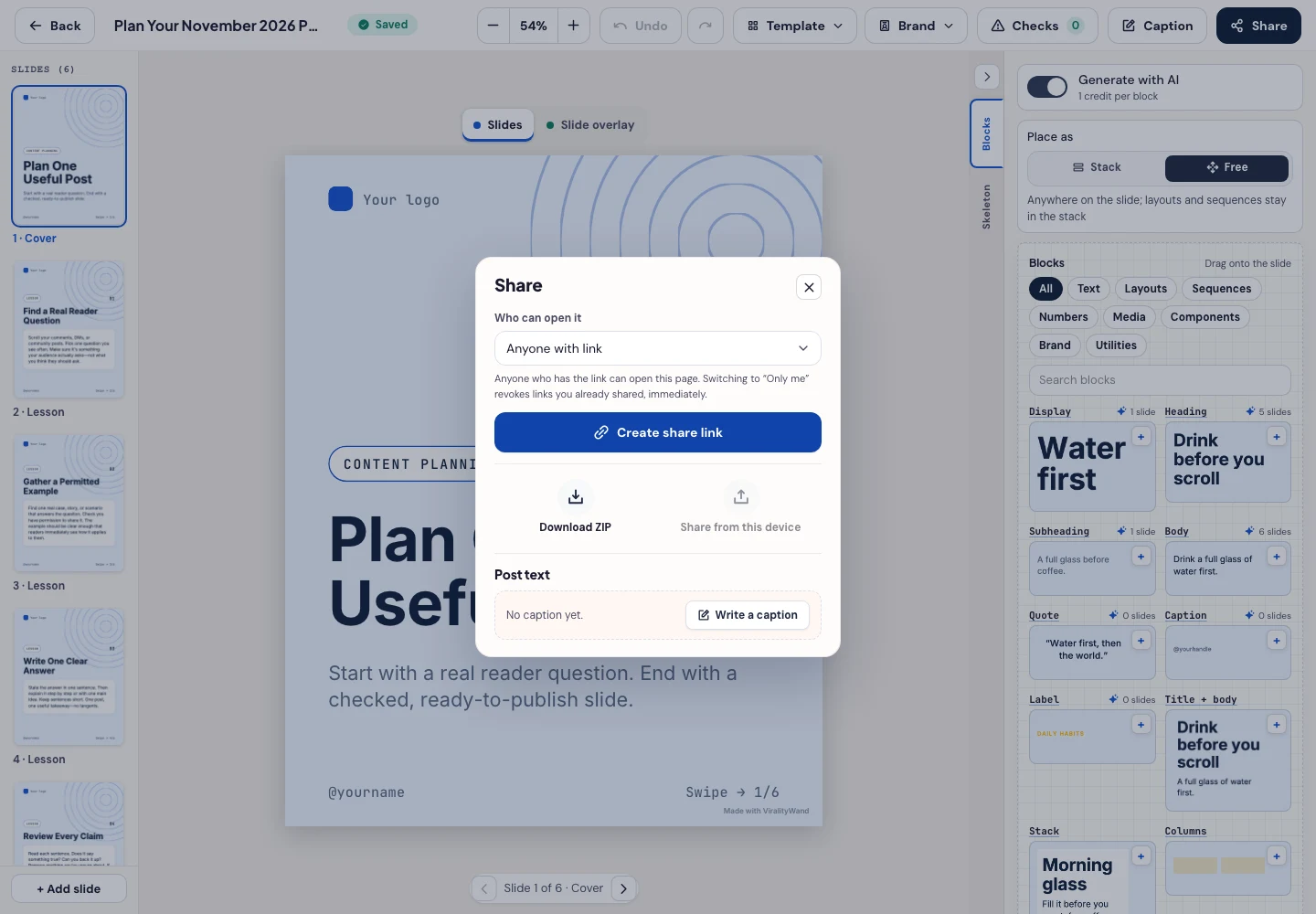
- Open Share → Download ZIP, unpack the slide images, and check their order, text and destination upload preview. This is a download workflow; publishing remains a separate step.
Further reading: Instagram trends · TikTok trends · ViralityWand editor · AI slop detector.
It feels good to have your first carousel going viral 😏
Just your idea, click-clack and voila! ViralityWand made just for that