21 Social Media Post Ideas for November 2026 (Copy and Post)

November does not need thirty unrelated posts. It needs a few things your audience can use, enough source material to support them, and a plan that fits the work you can actually finish. The 21 ideas below are starting points, not a requirement to publish every day.
For a business that observes these shopping dates, Black Friday is Friday, November 27, 2026, and Cyber Monday is Monday, November 30. Thanksgiving is November 26 in the United States. These are planning dates, not universal reasons to run a promotion. Check your audience's location, the actual offer, and the November calendar.
1. Choose ideas you can support with real material
Each opening below is copy-ready as a starting sentence. Replace bracketed details with confirmed information, and write the body before treating the post as finished. Do not publish a customer story, result, or offer simply because an idea suggests one.
Explain something your customer needs to do
- “Before you buy [product], check these three things.” Show the actual checks and explain which buyer each option suits. Use your product documentation rather than invented specifications.
- “What happens after you book [service]?” Walk through the real next steps, including anything the customer must prepare. This can work without a seasonal offer.
- “One question to ask before choosing [option A] or [option B].” Explain a real tradeoff. A clear limitation is more useful than declaring one choice best for everyone.
Show a decision behind your work
- “We changed this detail before publishing. Here is why.” Put a permitted before-and-after example beside the decision. Do not attach a performance claim unless it was measured.
- “The part of [process] that the finished result hides.” Show one constraint or check. Leave private client information out of the photograph and the caption.
- “Why this version did not make the final cut.” Explain what the rejected draft failed to do and what the replacement changes. Label a constructed example as illustrative.
Make November easier to plan
- “What needs to be ready before our November deadline.” State the actual deadline, who it affects, and the next action. Include a time zone where it matters.
- “Our November opening or delivery arrangements, in one place.” Use confirmed hours and service areas. Update the post if those details change.
- “Three things to prepare before the end-of-month rush.” Choose tasks relevant to your customers rather than assuming every reader shops for Black Friday.
Explain an offer without hiding its conditions
- “What is included in [offer], and what is not.” Show the real contents, price, and exclusions. A carousel can give each condition room to be read.
- “The question to answer before buying a bundle.” Compare the bundle with buying only what the reader needs. Use actual prices and quantities when making a cost comparison.
- “How our November ordering deadline works.” Explain the cutoff and what happens afterwards. Do not imply there is limited stock unless the business can substantiate it.
Give the reader something to check or keep
- “A checklist for [specific task] before you press publish.” Make each line an action someone can perform, such as opening the final link while signed out.
- “A small template for writing a clearer [brief, request, or email].” Include the actual template inside the post. Do not withhold the useful part behind a vague teaser.
- “The first thing to inspect when [specific problem] happens.” Show the check and explain what its result does and does not establish. Avoid diagnosing an entire problem from one number.
Use what you already learned
- “One question we have been answering this month.” Use a real recurring question or describe it as a proposed topic. Never turn an invented question into customer research.
- “What this example proves, and what it still cannot tell us.” Share permitted evidence with its limits. That can be more useful than a broad success story.
- “The explanation we wish was easier to find.” Write the missing explanation from sources you can verify. Link to the relevant reference when the reader needs more detail.
Close the month without manufacturing a victory
- “What we are keeping for December.” Explain one practice you intend to keep and the actual reason. An editorial preference does not need a fake growth chart.
- “The November plan changed here.” Show a change in priorities and what it meant for the work. A canceled post is sometimes the right decision.
- “What should the next post explain?” Ask a bounded question about a real choice, such as setup versus maintenance. Use the replies as suggestions, not as a representative market survey.
2. Turn one idea into a finished outline
Take idea 4. In this illustrative example, a small studio has rewritten a welcome email because the upload link was hard to find. Its source pack contains the reconstructed old paragraph, the revised paragraph, and a note explaining the change. No customer result is being claimed.
A six-slide outline is: name the upload-link problem; show the old placement; explain the extra searching it required; show the revised paragraph; give a check the reader can apply to their own email; finish with the next action. The useful part is the visible change, not “40% better onboarding” invented to make it sound impressive.
3. Make a realistic November plan
Choose a few ideas with different jobs. For example, a planning slot on November 2 can answer a common question, November 9 can show a process decision, and November 16 can explain a real offer if one exists. The week of November 23 can cover confirmed ordering arrangements. November 30 can be a review rather than another sales post.
These are illustrative editorial slots, not recommended posting hours or an engagement formula. Leave an empty slot when the evidence or offer is not ready. Use the November content calendar for the date-by-date planning method and the Black Friday guide when the campaign actually applies.
4. Review the post before it leaves the draft
Check the promise against the body, every date against the real plan, and any business detail against the source. Read the export in order and inspect it in the destination app. A polished design cannot make an unsupported claim ready to publish.
The next section shows how to take the worked example into ViralityWand, keeping the source material and the editorial checks attached to the task.
How to do it in ViralityWand
- Open this brief in ViralityWand. The link prefills the idea field; it does not start generation. Sign in if asked, then add your real source notes and replace any working placeholders.
- In Template, choose a layout that fits the explanation; inspect its structure instead of assuming it supports an exact slide count. Open Writing and choose English. Set Slides where the chosen template allows it. Lesson Series is a real text-led option to inspect, not a required choice. Browse matching templates.
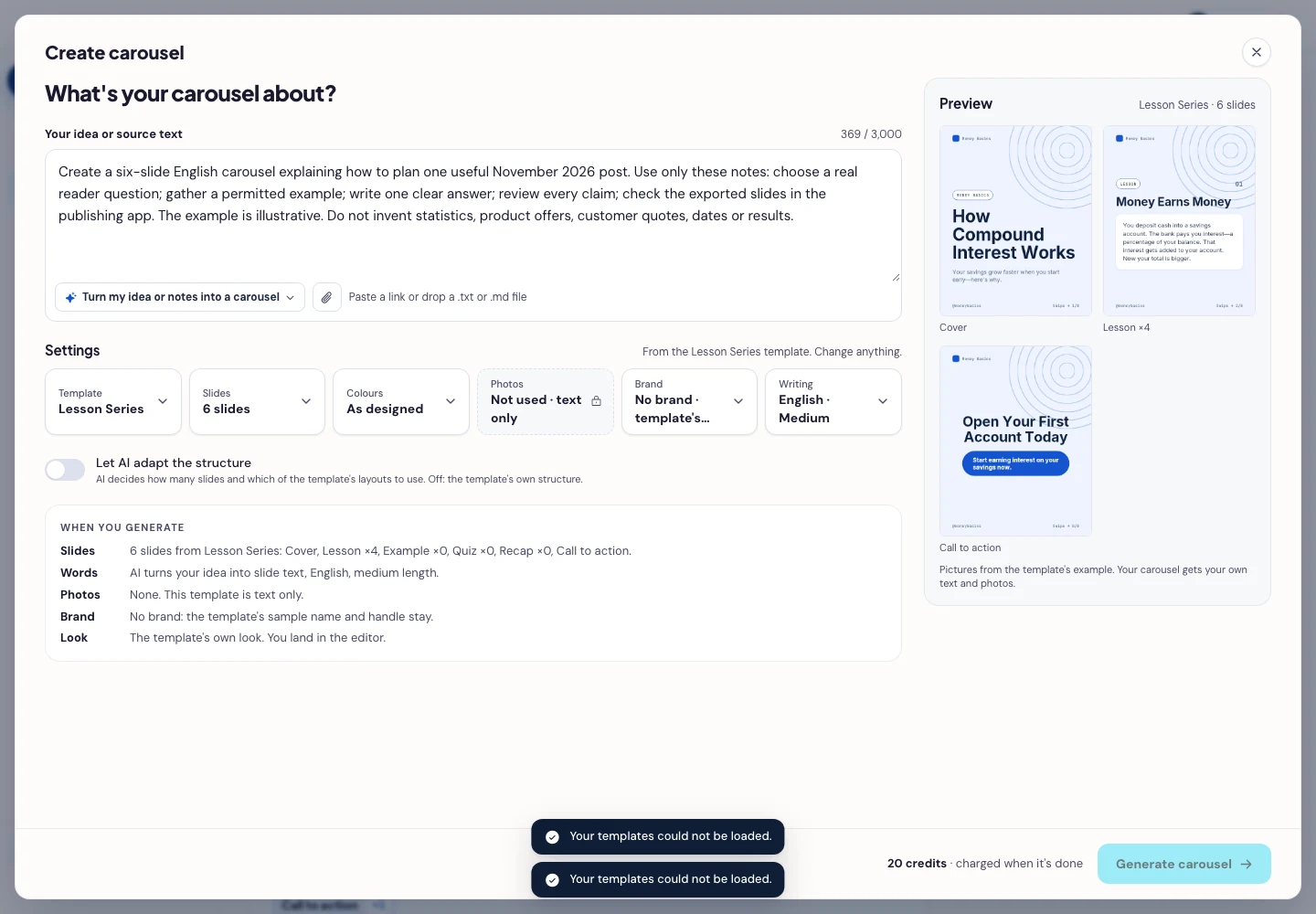
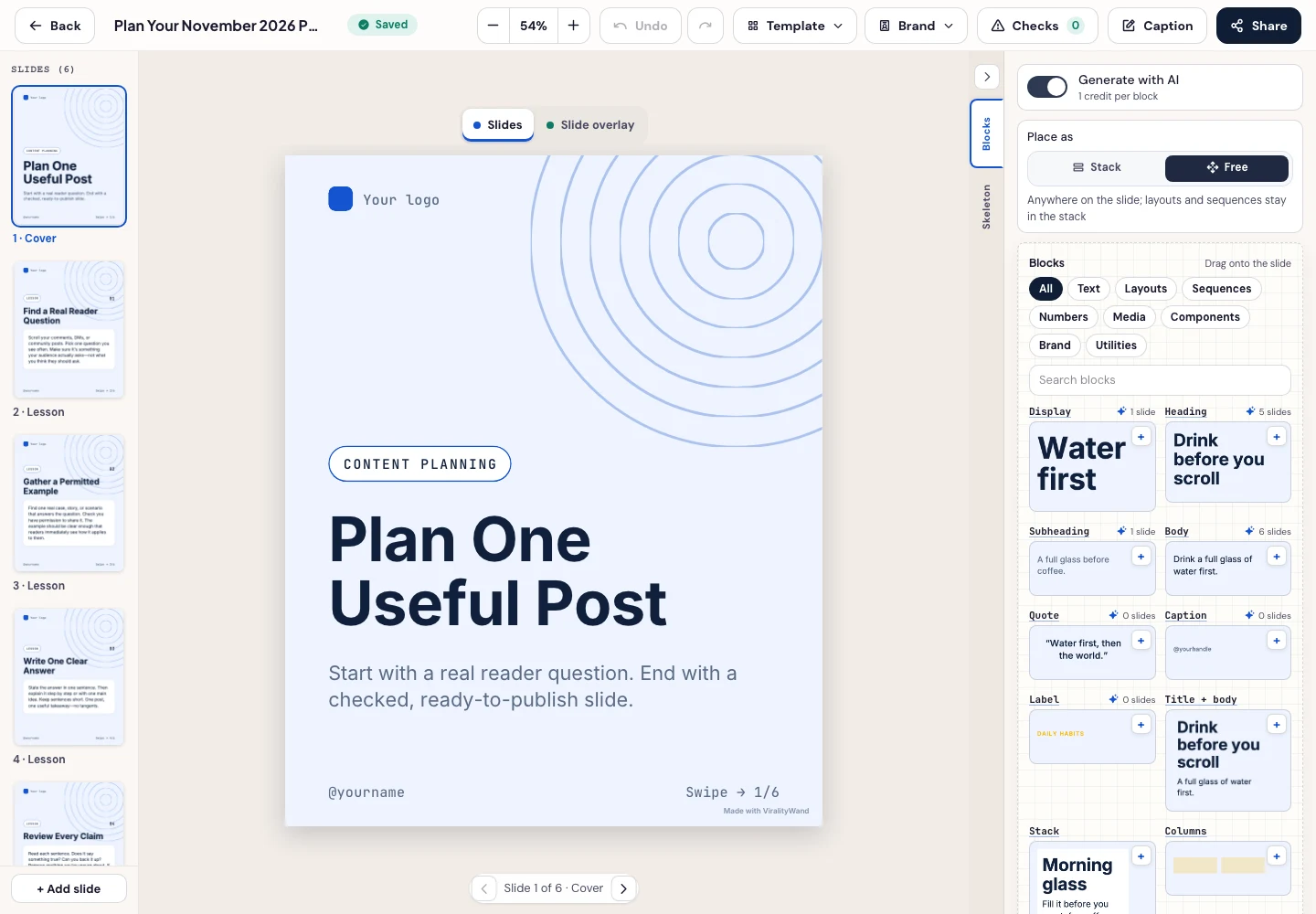
- Press Generate carousel only after checking the brief and the credit amount shown in the app. In the editor, review every slide, edit unsupported wording, and use Brand or the text controls to replace sample names, handles, and logos. Compare every slide with the old paragraph, the revision, and the reason for moving the upload link.
- Open Share → Download ZIP, unpack the slide images, and check their order, text and destination upload preview. This is a download workflow; publishing remains a separate step.
It feels good to have your first carousel going viral 😏
Just your idea, click-clack and voila! ViralityWand made just for that