How to plan your November 2026 social media calendar

A content calendar is useful when it records what each post needs before publication. A square containing “Black Friday content” is not much of a plan if the offer, the product details, and the order deadline are still undecided.
This guide builds a November 2026 plan for an illustrative stationery shop. The shop wants to explain product choices and, if a real offer is approved, give customers clear ordering information. No prices, stock levels, or customer outcomes are being claimed.
1. Record the dates that actually affect the reader
November 1, 2026 is a Sunday. For audiences that observe the US shopping calendar, Thanksgiving is Thursday, November 26; Black Friday is Friday, November 27; Cyber Monday is Monday, November 30. See the November calendar and check local arrangements separately.
A service business may care more about booking capacity than any of those dates. A shop's shipping cutoff may come earlier. Record the relevant deadline and its source instead of filling the plan with every available holiday.
2. Give each planned post a job and an input
For the fictional shop, use this small plan. Dates are illustrative publishing slots, not a universal recommendation.
| Date | Reader question | Source needed before drafting | Output |
|---|---|---|---|
| Nov 2, Monday | Which notebook fits my use? | Confirmed sizes and paper details | A product-choice carousel |
| Nov 9, Monday | What is inside the box? | A permitted photograph and confirmed contents | An annotated photo post |
| Nov 16, Monday | What does the offer include? | Approved price, terms, exclusions | An offer explanation, only if approved |
| Nov 23, Monday | When must I order? | Actual cutoff, time zone, collection or delivery conditions | A deadline post |
| Nov 27, Friday | Is the offer still available? | A fresh availability check | An update only when needed |
| Nov 30, Monday | What should change for December? | Actual reader questions and available post-level data | A planning review |
Add an owner and a status beside each row. “Needs terms” and “needs image permission” are more useful statuses than pretending the draft is nearly finished.
3. Prepare the first carousel before filling more slots
The November 2 example can compare notebook choices through six slides: identify the intended use; explain the available size options; show the relevant paper specification; describe a tradeoff; offer a decision checklist; point to confirmed product information.
A comparison needs actual specifications. If a detail is missing, leave it as a working question and resolve it before publishing. Do not ask an AI tool to invent a credible answer so the calendar can remain green.
Use ViralityWand for the draft and layout once those notes exist. The walkthrough below explains the app steps. Keep the calendar itself in whatever planning document the team can maintain; generating slides does not automatically schedule a post.
4. Check the dependency before the date
For the November 16 offer post, approval of the price and terms is a dependency. If it is not ready, publish a useful product-choice explanation or leave the slot empty. Do not turn a provisional offer into a public promise.
Review the export, caption, and destination preview together. The date on a slide and the date in an order form must agree. Include the time zone where a cutoff could otherwise be misunderstood.
5. Use the review to plan the next month
Record the question a post was meant to answer, what was published, and what readers actually asked. A post-level count cannot reveal which slide caused a result. Treat explanations as hypotheses unless the available evidence supports them.
For more starting points, use the 21 November ideas. For preparing several drafts from a source pack, use the November batching guide. The calendar should make that work visible, including the part that is not ready yet.
How to do it in ViralityWand
- Open this brief in ViralityWand. The link prefills the idea field; it does not start generation. Sign in if asked, then add your real source notes and replace any working placeholders.
- In Template, choose a layout that fits the explanation; inspect its structure instead of assuming it supports an exact slide count. Open Writing and choose English. Set Slides where the chosen template allows it. Lesson Series is a real text-led option to inspect, not a required choice. Browse matching templates.
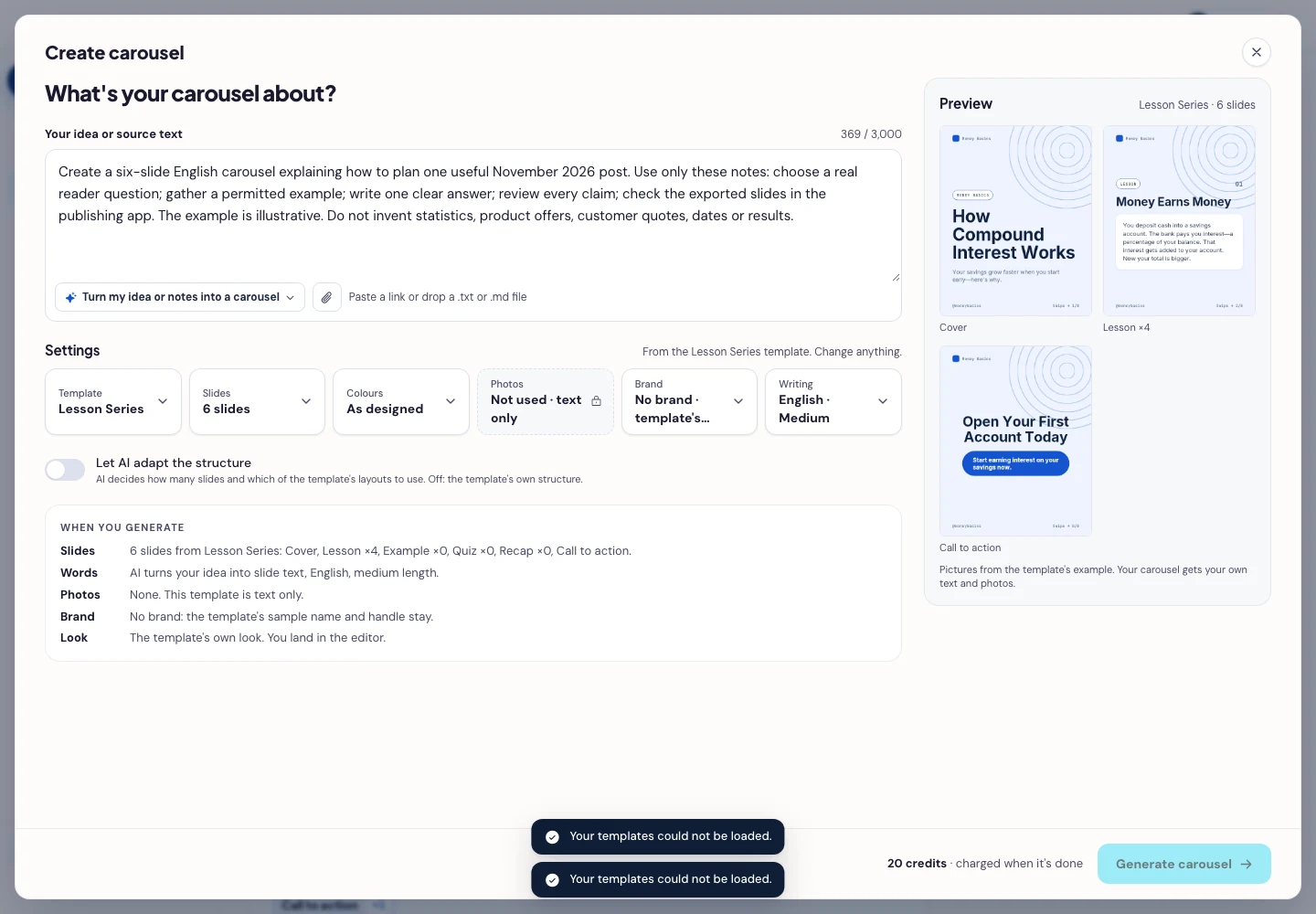
- Press Generate carousel only after checking the brief and the credit amount shown in the app. In the editor, review every slide, edit unsupported wording, and use Brand or the text controls to replace sample names, handles, and logos. Keep the planning calendar separate; the draft does not book a publishing slot.
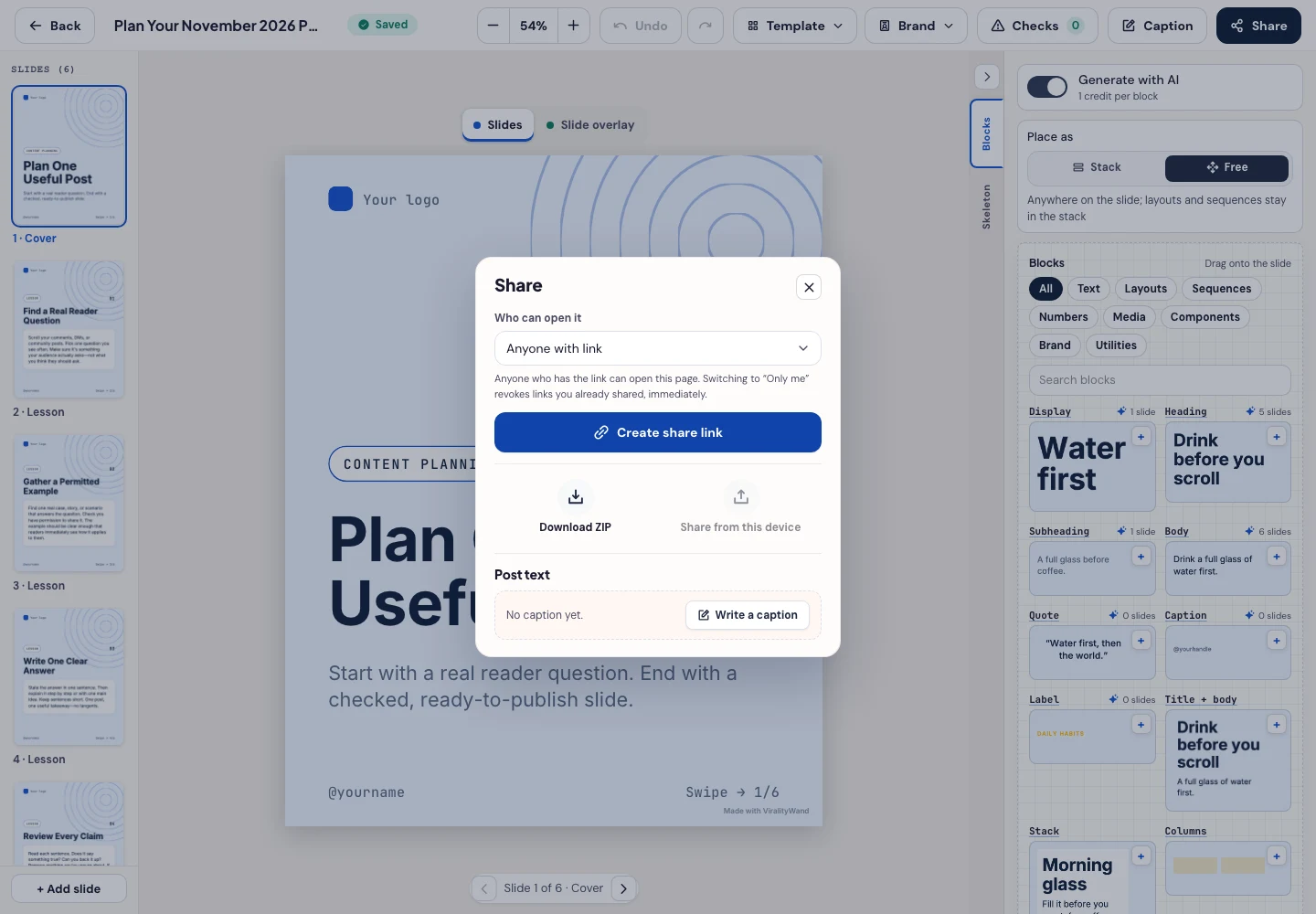
- Open Share → Download ZIP, unpack the slide images, and check their order, text and destination upload preview. This is a download workflow; publishing remains a separate step.
It feels good to have your first carousel going viral 😏
Just your idea, click-clack and voila! ViralityWand made just for that