How to batch November carousel drafts without rushing review

Batching is useful when related posts can share source preparation without sharing the same mistake. Creating six drafts from an unverified offer merely distributes the wrong price more efficiently.
This worked example is a fictional service studio preparing three November posts: what to put in a project brief, what happens during the first review, and how to prepare final files. The finish line is three reviewed drafts with clear next actions. It is not a scheduled campaign or a promise about reach.
1. Make one source pack and three separate questions
Collect the studio's actual process notes, permitted examples, and any current service conditions. In the illustrative pack, the supplied notes explain the project audience, the visitor action, the review responsibility, and the file handoff. They contain no client quotation or measured result.
Write one reader question for each draft. A broad prompt such as “make a month of content” gives the model too much room to invent the process. Keep the questions close to the material you can show.
2. Decide what the posts should share
The three drafts can share terminology and a visual direction. They should still contain distinct answers. Use a simple working record:
| Draft | Answer it must contain | Main check |
|---|---|---|
| The brief | Audience, visitor action, known constraints | No invented project requirements |
| The review | Who checks what and how comments are collected | Matches the actual review process |
| The handoff | What files are supplied and where they go | Matches the actual delivery arrangement |
Choose November slots only after deciding which drafts can be reviewed. A date is a planning constraint, not proof that a post is ready.
3. Generate each draft from its own brief
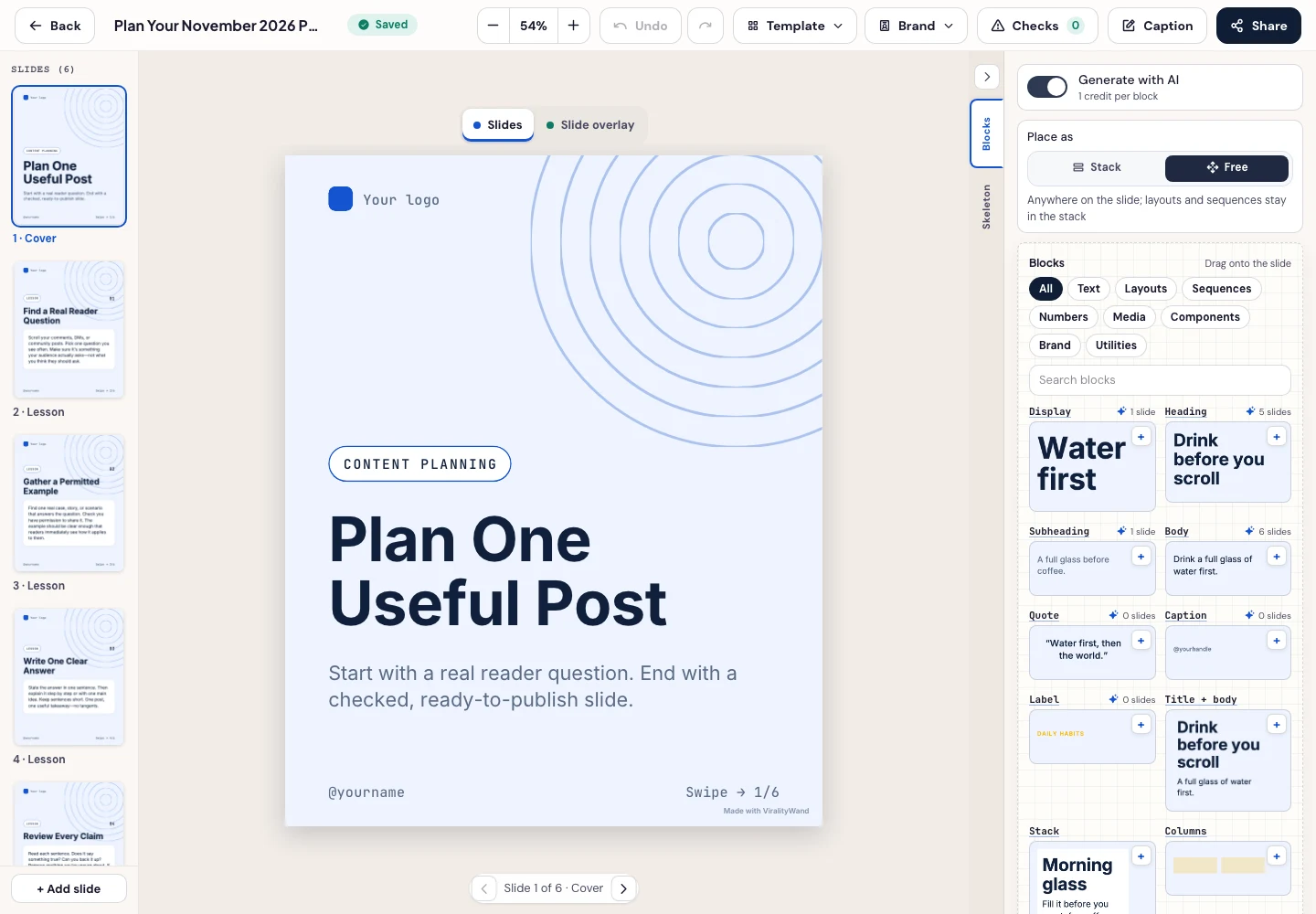
Use ViralityWand to draft one carousel at a time from the relevant part of the source pack. Keep the intended question in the idea field and remove details that belong to another post. The app walkthrough below shows the composer and review steps.
For the brief post, an opening might be “What to prepare before asking for a website quote.” The body should explain the audience, visitor action, and constraints with a clearly illustrative example. It should not introduce a budget estimate that was never supplied.
Keep the working notes beside the draft. If a generated line says the studio always offers two review rounds, check the source. The right fix is to correct the line, not to assume the model knows the studio's terms.
4. Review the batch for repeated and conflicting claims
Read the openings together. If all three promise a complete guide to a website project, narrow them. Then compare shared facts such as file names, contact instructions, or service conditions. One changed detail needs correcting wherever it appears.
Inspect each slide at a readable size. Reusing a layout is reasonable; forcing different amounts of text into the same box is not. Shorten or split the explanation before shrinking the type.
5. Export separately and confirm the destination preview
Open every final file and check the sequence. A correct editor preview does not establish how the upload composer will show the images or document. Review the caption and the next-action link as well.
Publish manually or use a separate scheduling tool you have verified. ViralityWand's drafting and export steps should not be described as automatic posting. If a draft is blocked by a missing fact, keep it out of the publishing queue.
Use the November content calendar to record dates and dependencies, and the November post ideas if one of the planned questions turns out to be too vague.
How to do it in ViralityWand
- Open this brief in ViralityWand. The link prefills the idea field; it does not start generation. Sign in if asked, then add your real source notes and replace any working placeholders.
- In Template, choose a layout that fits the explanation; inspect its structure instead of assuming it supports an exact slide count. Open Writing and choose English. Set Slides where the chosen template allows it. Lesson Series is a real text-led option to inspect, not a required choice. Browse matching templates.
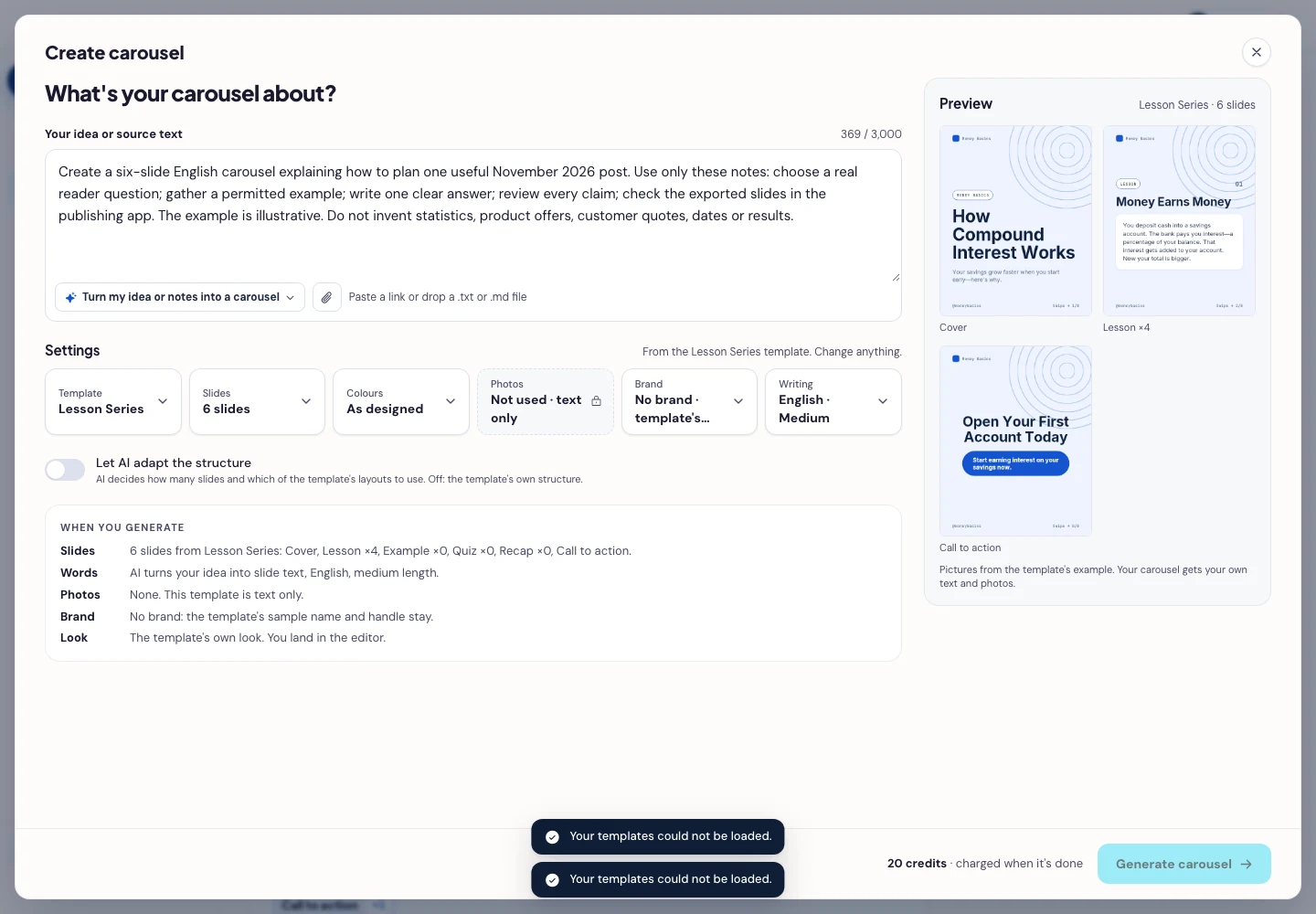
- Press Generate carousel only after checking the brief and the credit amount shown in the app. In the editor, review every slide, edit unsupported wording, and use Brand or the text controls to replace sample names, handles, and logos. Create the next draft with its own brief, then compare shared service details across the batch.
- Open Share → Download ZIP, unpack the slide images, and check their order, text and destination upload preview. This is a download workflow; publishing remains a separate step.
It feels good to have your first carousel going viral 😏
Just your idea, click-clack and voila! ViralityWand made just for that